GUI composer. Embedded development tools презентация
Содержание
- 2. GUI Composer: See & Control Create GUI applications that provide: Visibility
- 3. When to use GUI Composer While debugging Create simple displays that
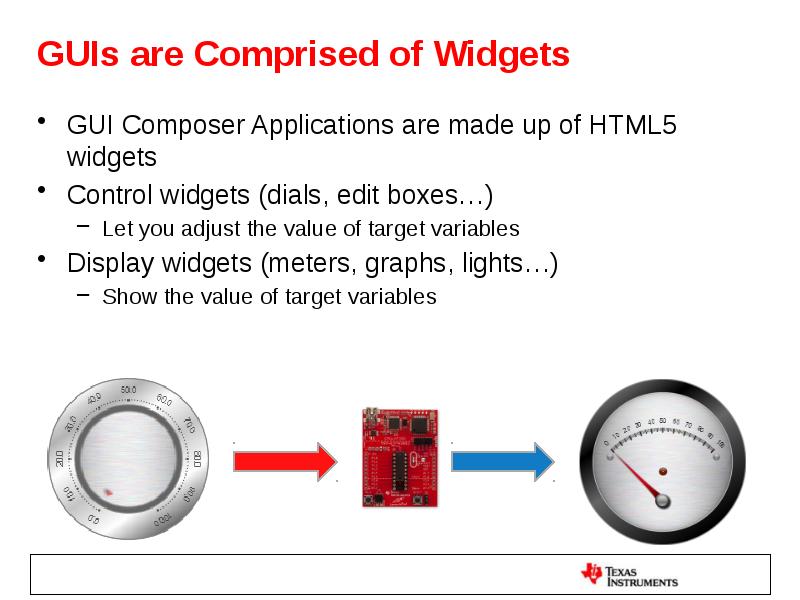
- 4. GUIs are Comprised of Widgets GUI Composer Applications are made up
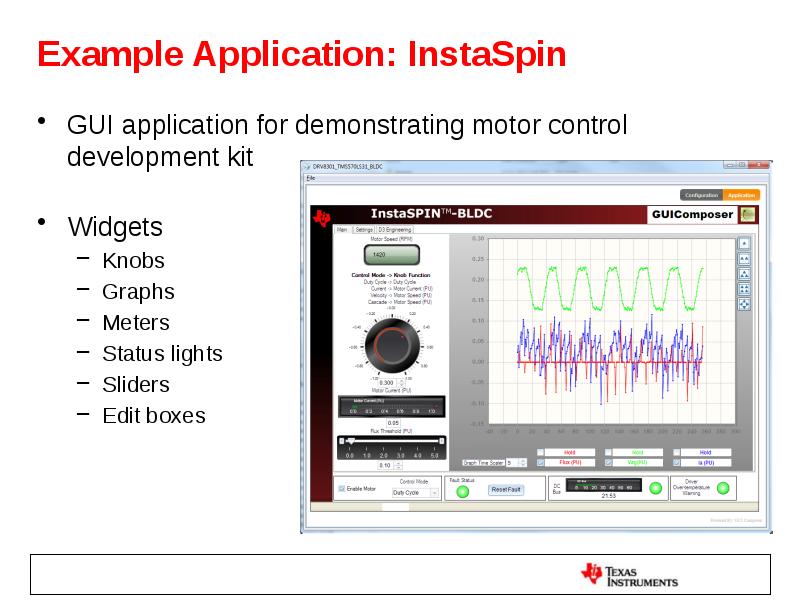
- 5. Example Application: InstaSpin GUI application for demonstrating motor control development kit
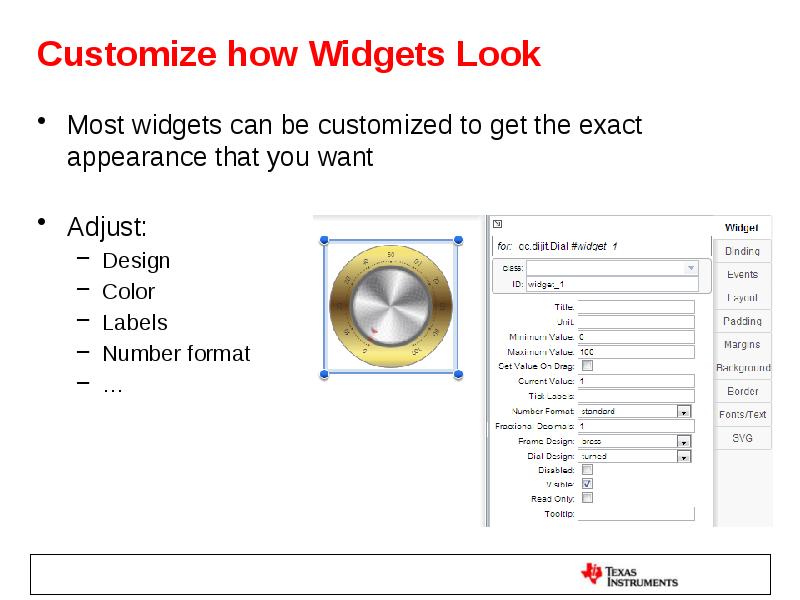
- 6. Customize how Widgets Look Most widgets can be customized to get
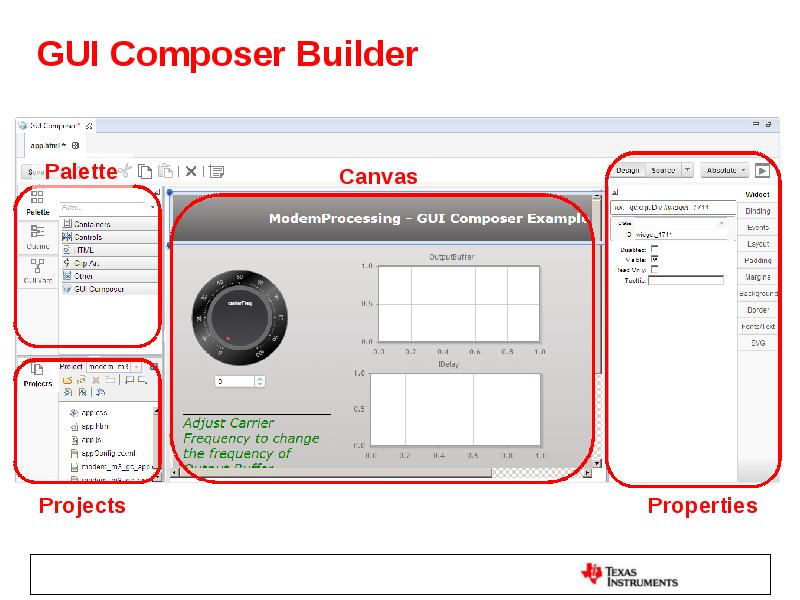
- 7. GUI Composer Builder
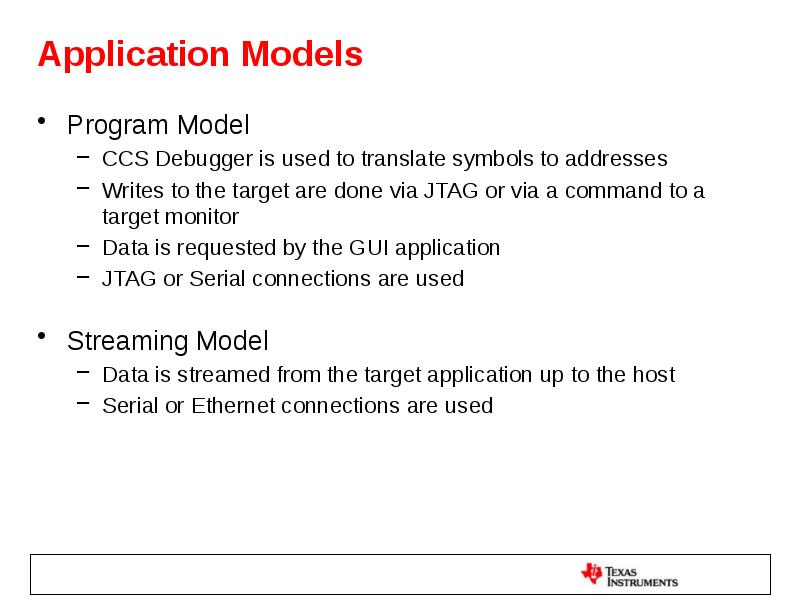
- 8. Application Models Program Model CCS Debugger is used to translate symbols
- 9. Program Model Symbol translation Symbols are translated to addresses by the
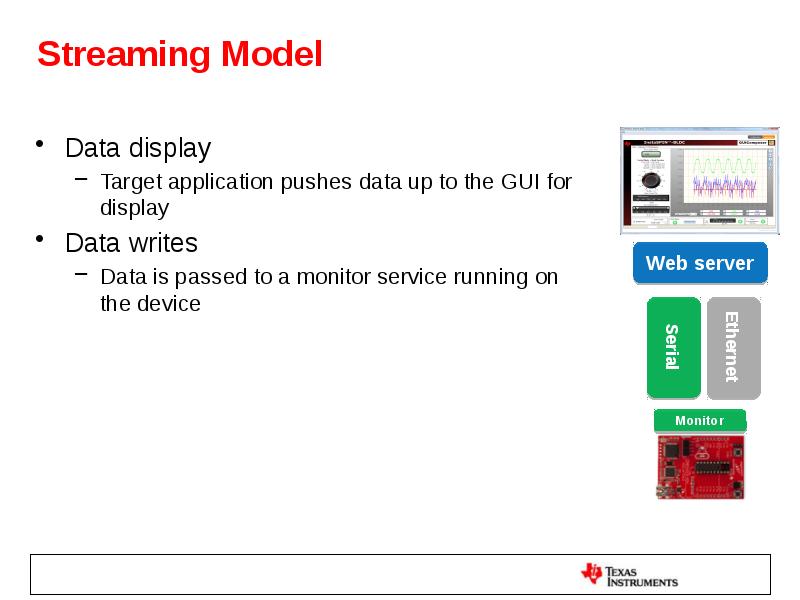
- 10. Streaming Model Data display Target application pushes data up to the
- 11. Adjusting Data Format It is possible to adjust the value of
- 12. Types of Applications CCS Plug-in Feature within CCS Available from View
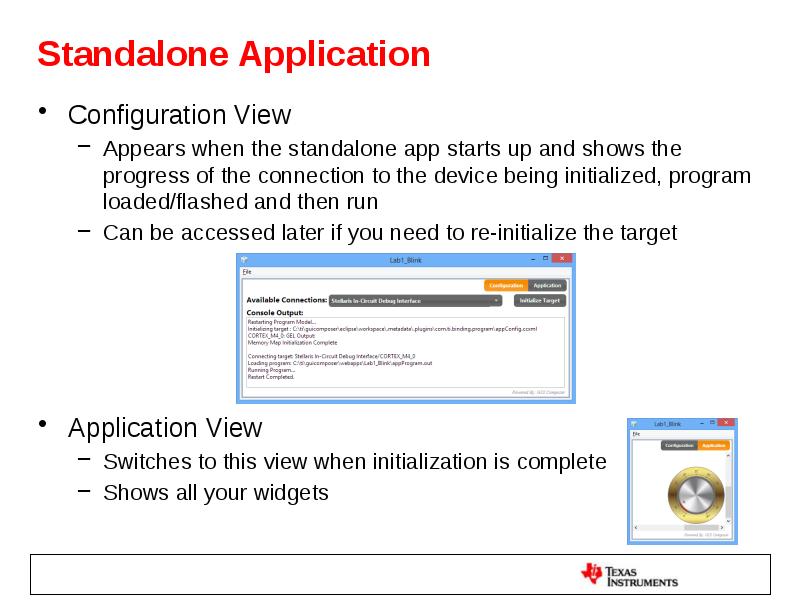
- 13. Standalone Application Configuration View Appears when the standalone app starts up
- 14. GUI Composer Runtime GUI Composer applications need access to services (target
- 15. Lab Requirements Software: Code Composer Studio v6.1.1.00022 GUI Composer (add-on
- 16. Installation Instructions Download and install Code Composer Studio v6.1.1.00022 from http://processors.wiki.ti.com/index.php/Download_CCS
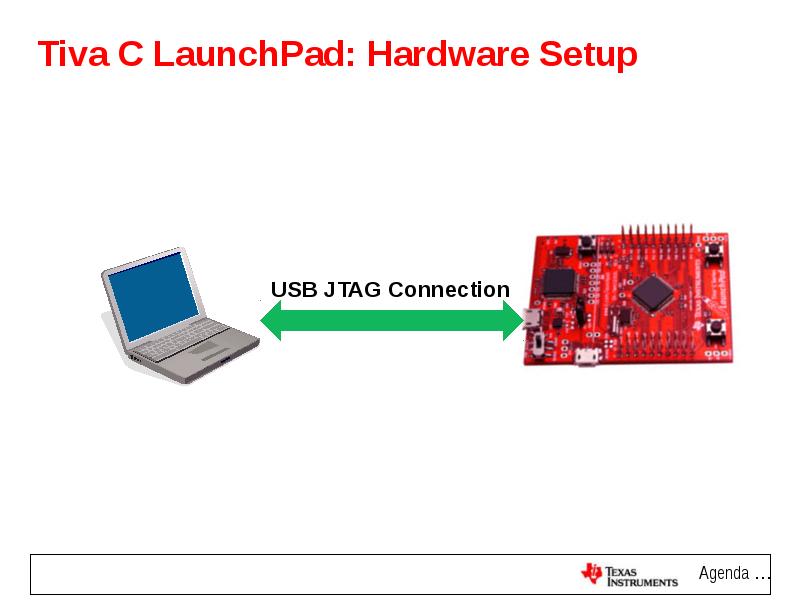
- 17. Tiva C LaunchPad: Hardware Setup
- 18. LAB 1: JTAG TRANSPORT LAB1A: create and use dial widget lab1b:
- 19. LAB conventions Lab steps are numbered for easier reference … …
- 20. JTAG Transport: Exercise Summary Key Objectives Create a GUI that will
- 21. LAB1A: create and use dial widget 15 minutes
- 22. Launch CCS Double click on the Code Composer Studio desktop icon
- 23. Import ‘blinky’ Project In the “Getting Started” page, click on Browse
- 24. Modify the Code Expand the project in the Project Explorer view
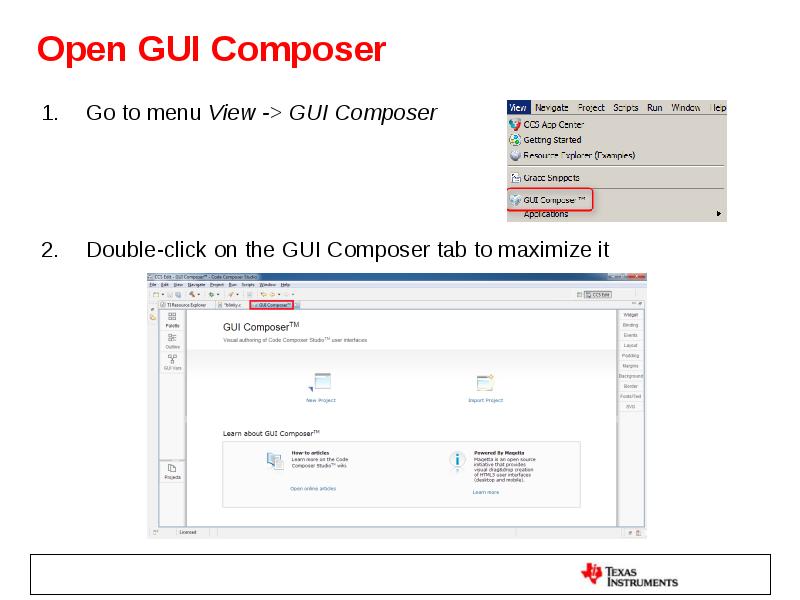
- 25. Open GUI Composer Go to menu View -> GUI Composer
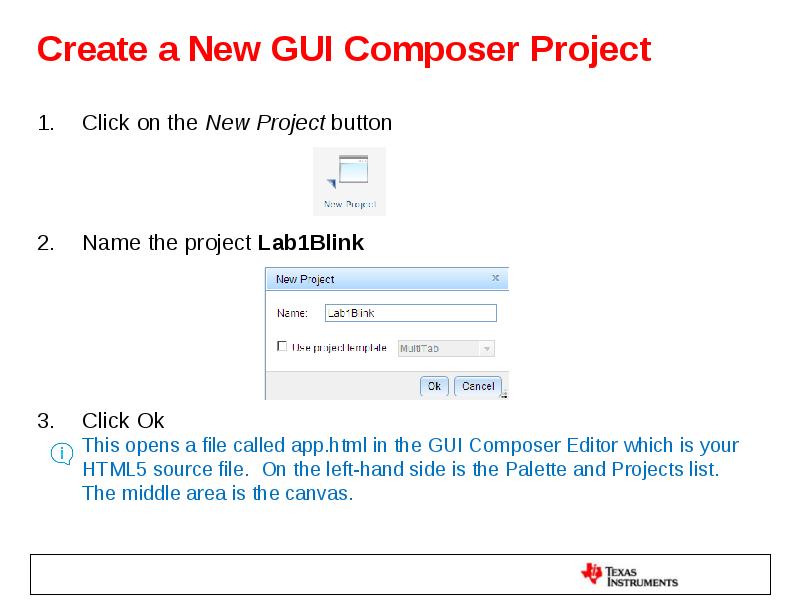
- 26. Create a New GUI Composer Project Click on the New Project
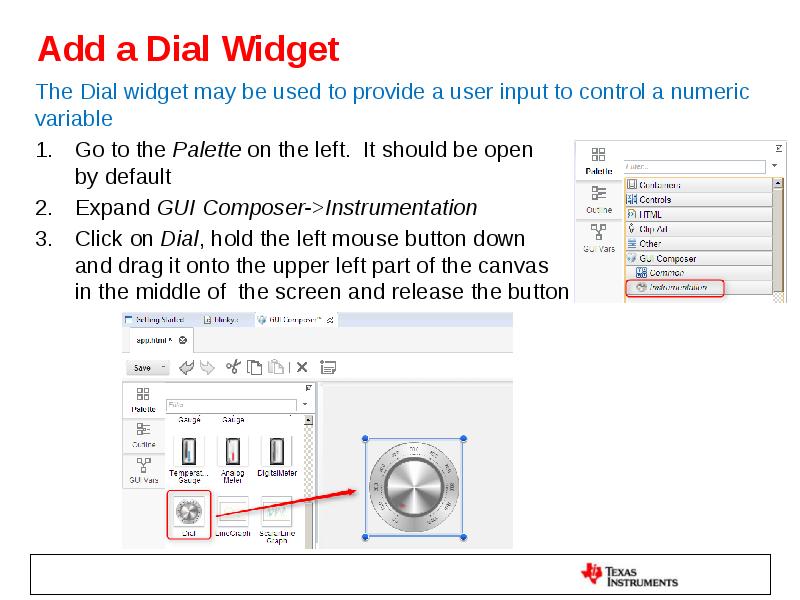
- 27. Add a Dial Widget The Dial widget may be used to
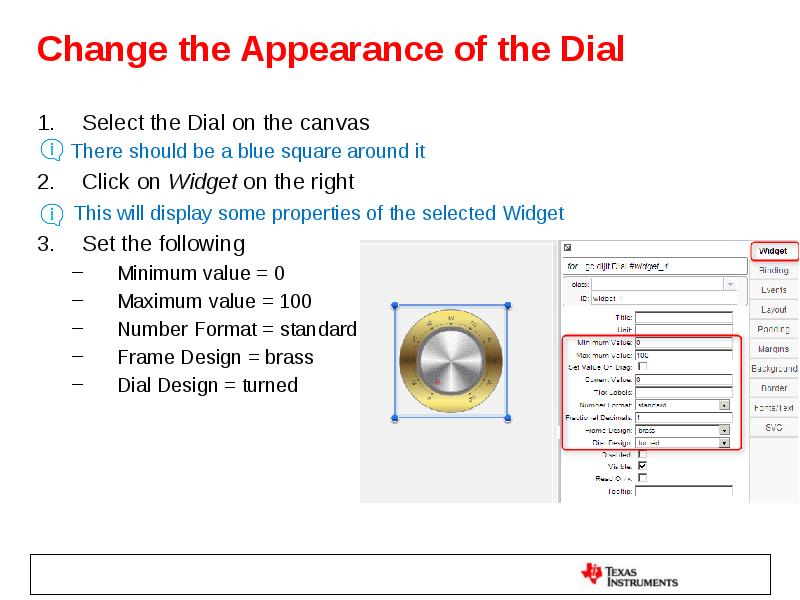
- 28. Change the Appearance of the Dial Select the Dial on the
- 29. Bind a Variable to the Dial Make sure the Dial is
- 30. Define Pre/Post Processing Functions Pre/Post Processing functions can be used to
- 31. Define Pre/Post Processing Functions Double-click on app.js in the Projects area
- 32. Generate App as a CCS Plug-in Click on the Install Project
- 33. Load Target Application If the Project Explorer is not visible double-click
- 34. Preview the App Click on GUI Composer tab in the editor
- 35. Test the App using Preview Mode The App can be used
- 36. Test the App using Plug-in Go to menu View -> Applications
- 37. Clean Up Click the X on the Lab 1A tab to
- 38. lab1b: create and use more widgets 30 minutes
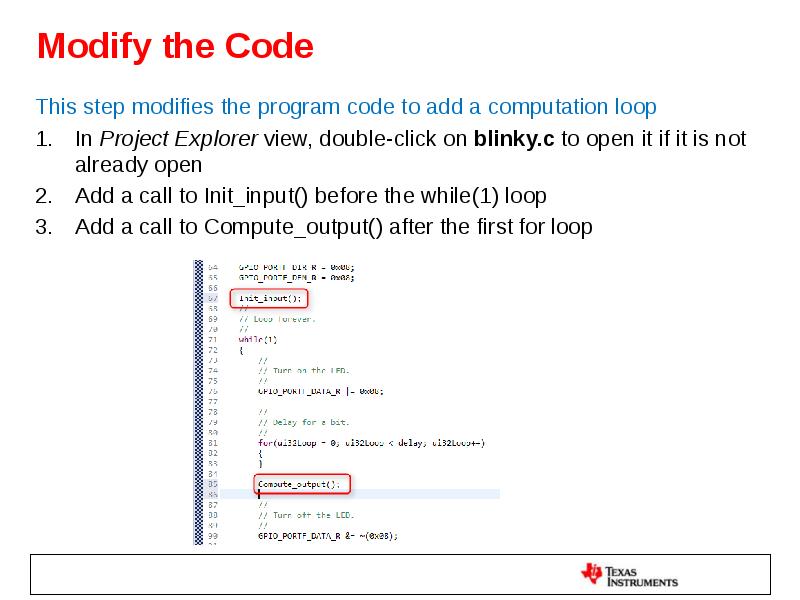
- 39. Modify the Code This step modifies the program code to add
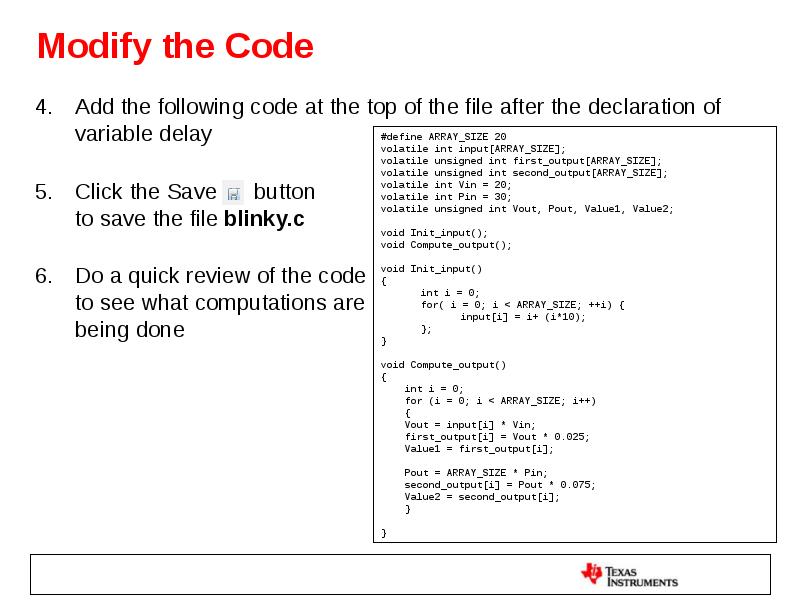
- 40. Modify the Code Add the following code at the top of
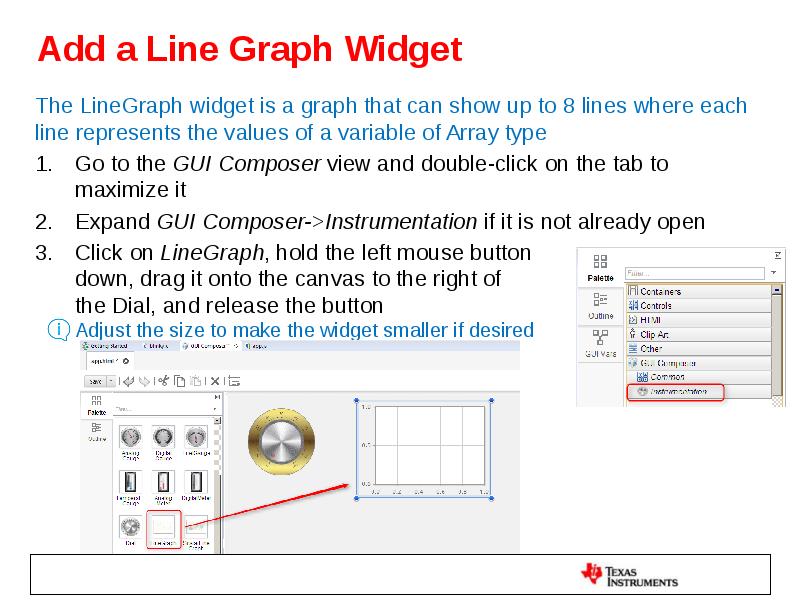
- 41. Add a Line Graph Widget The LineGraph widget is a graph
- 42. Set the Properties of the Line Graph Select the LineGraph on
- 43. Bind Variables to the Line Graph Make sure the Line Graph
- 44. Add a Scatter Plot Widget The ScatterPlot widget is a graph
- 45. Set the Properties of the Scatter Plot Select the Scatter Plot
- 46. Bind Variables to the Scatter Plot Make sure the ScatterPlot is
- 47. Add Label Widgets The Label widget is used to add text
- 48. Add Number Spinner Widgets The NumberSpinner widget provides arrows to increment/decrement
- 49. Set Properties and Bindings for Number Spinners Select the NumberSpinner next
- 50. Set Properties and Bindings for Number Spinners Select the NumberSpinner next
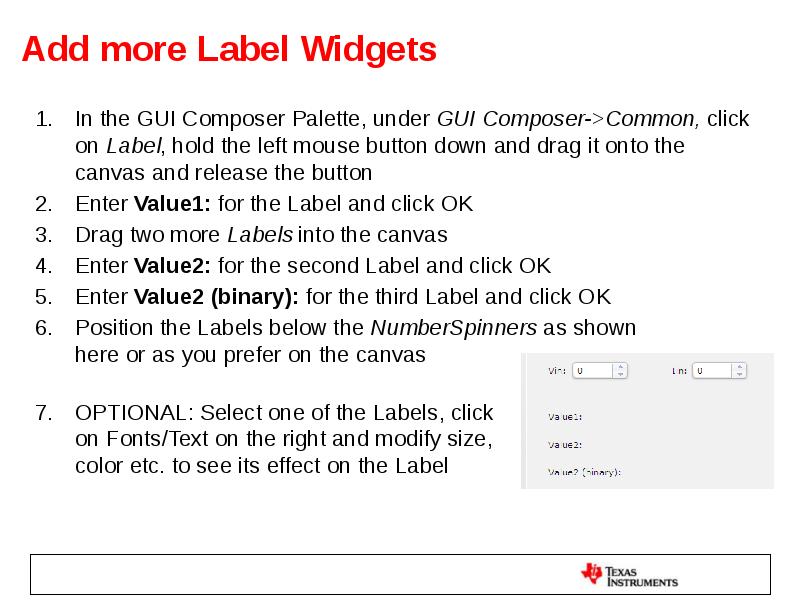
- 51. Add more Label Widgets In the GUI Composer Palette, under GUI
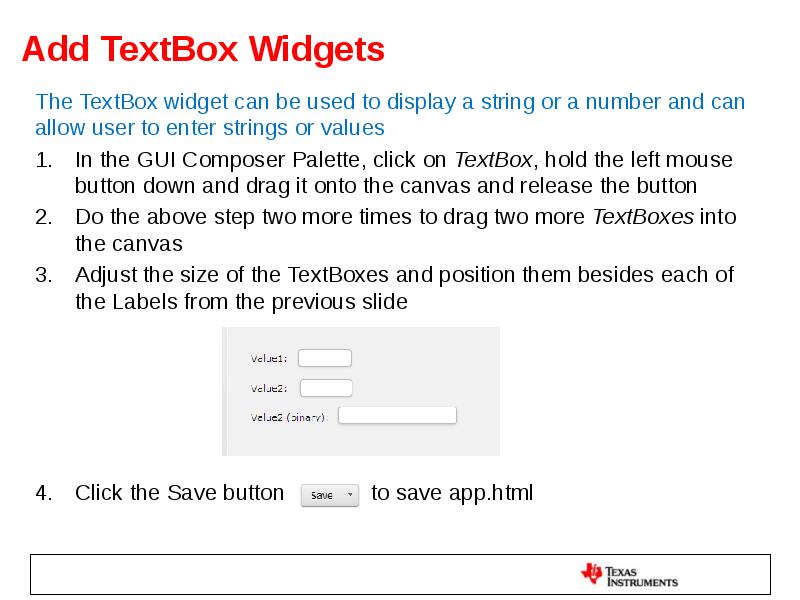
- 52. Add TextBox Widgets The TextBox widget can be used to display
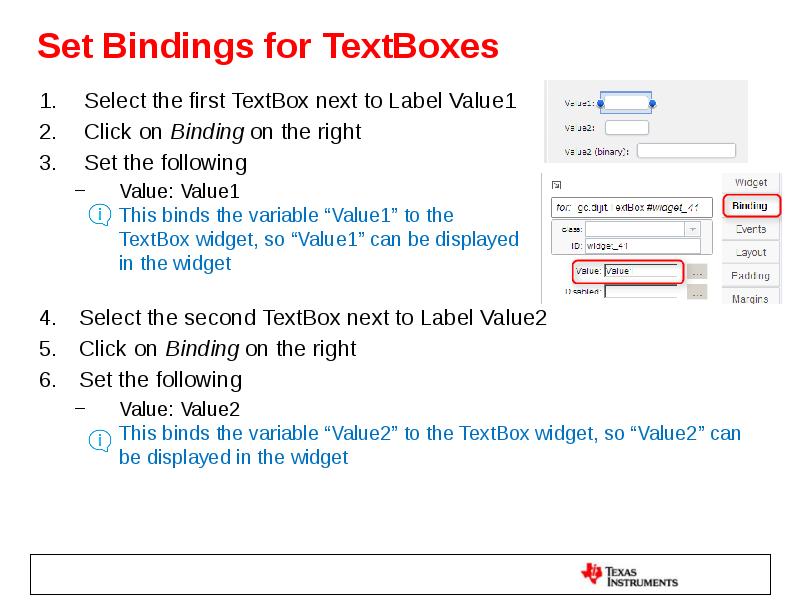
- 53. Set Bindings for TextBoxes Select the first TextBox next to Label
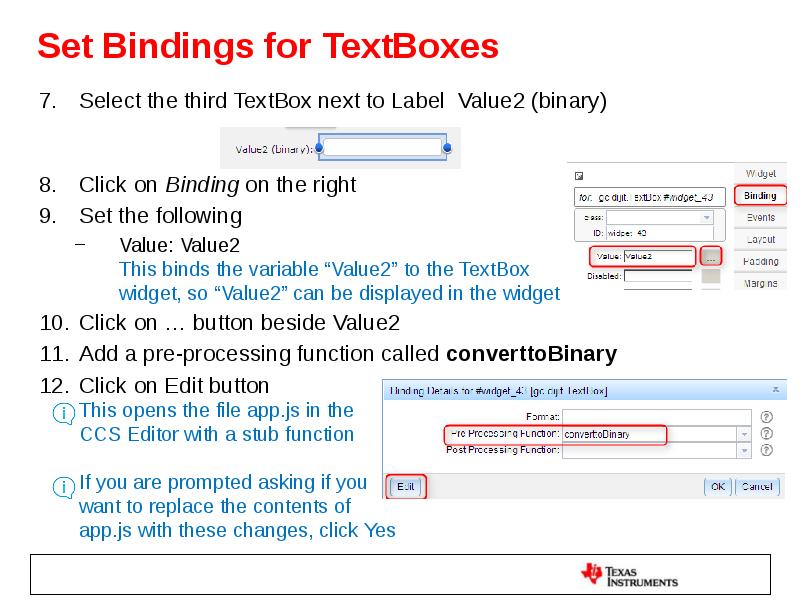
- 54. Set Bindings for TextBoxes Select the third TextBox next to Label
- 55. Set Bindings for TextBoxes In the converttoBinary function within app.js, change
- 56. Add MultiImage Widget The MultiImage widget can be used to display
- 57. Add MultiImage Widget The steps below set which image is to
- 58. Set Binding for MultiImage Select the MultiImage widget Click on Binding
- 59. Set Binding for MultiImage In the ValueTooHigh function enter the code
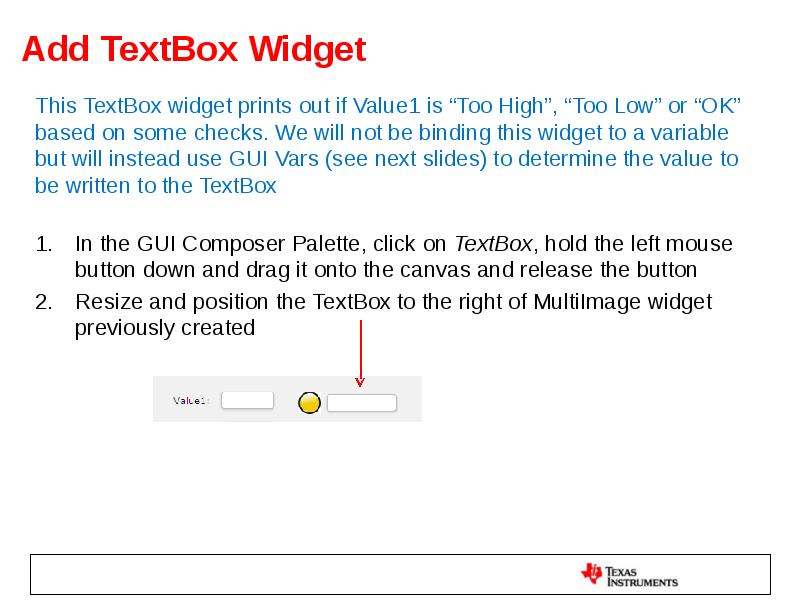
- 60. Add TextBox Widget This TextBox widget prints out if Value1 is
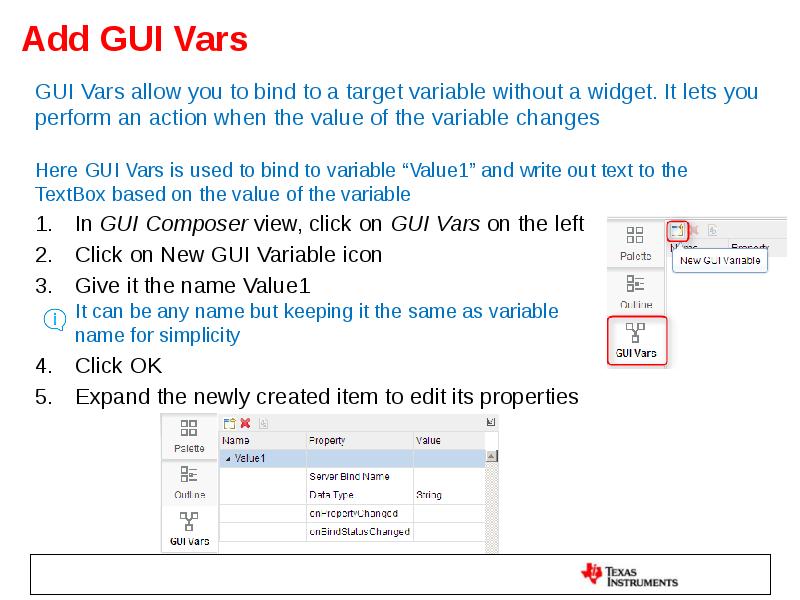
- 61. Add GUI Vars GUI Vars allow you to bind to a
- 62. Add GUI Vars For Server Bind Name, click on Value column
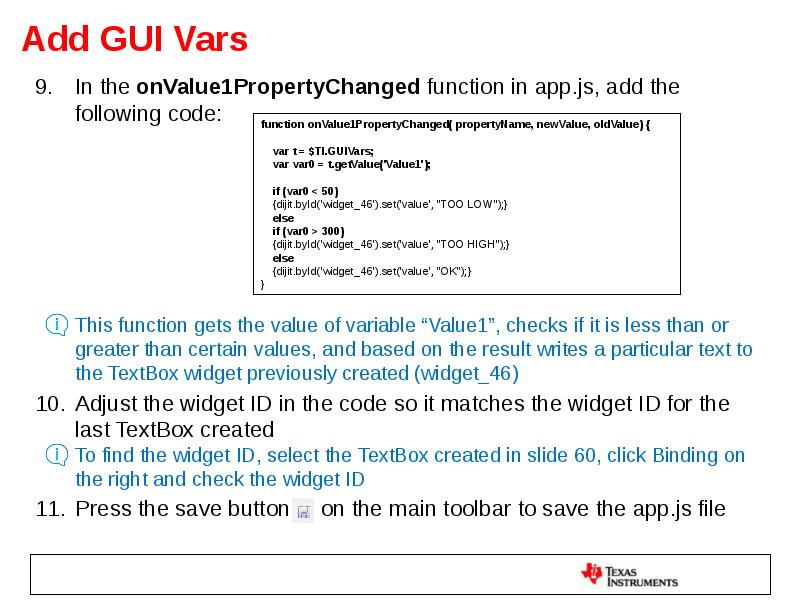
- 63. Add GUI Vars In the onValue1PropertyChanged function in app.js, add the
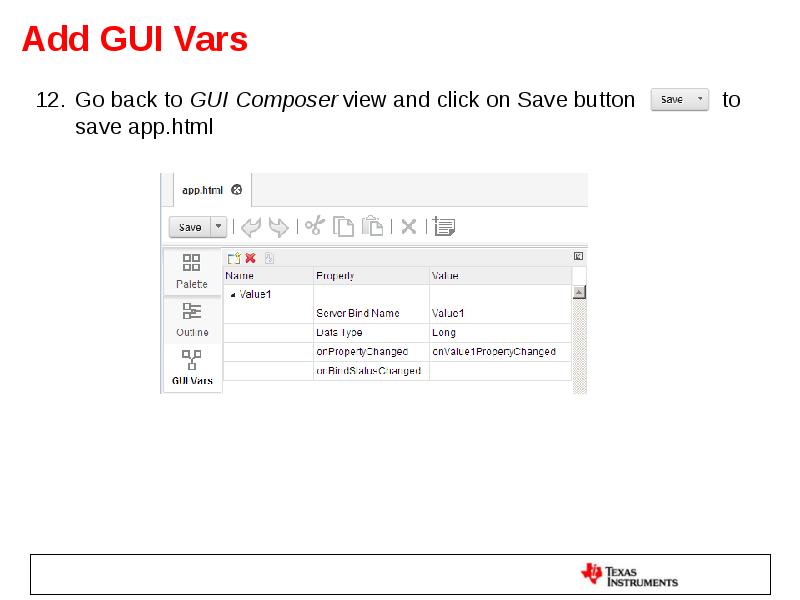
- 64. Add GUI Vars Go back to GUI Composer view and click
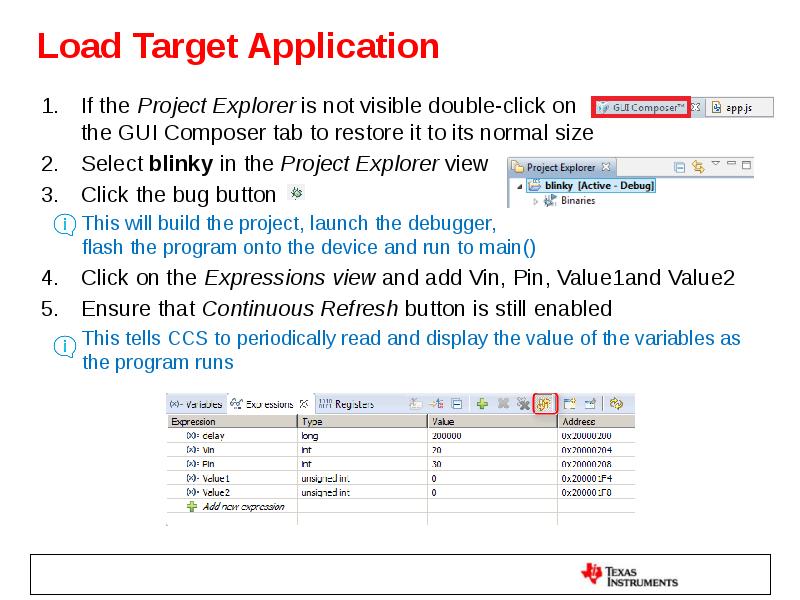
- 65. Load Target Application If the Project Explorer is not visible double-click
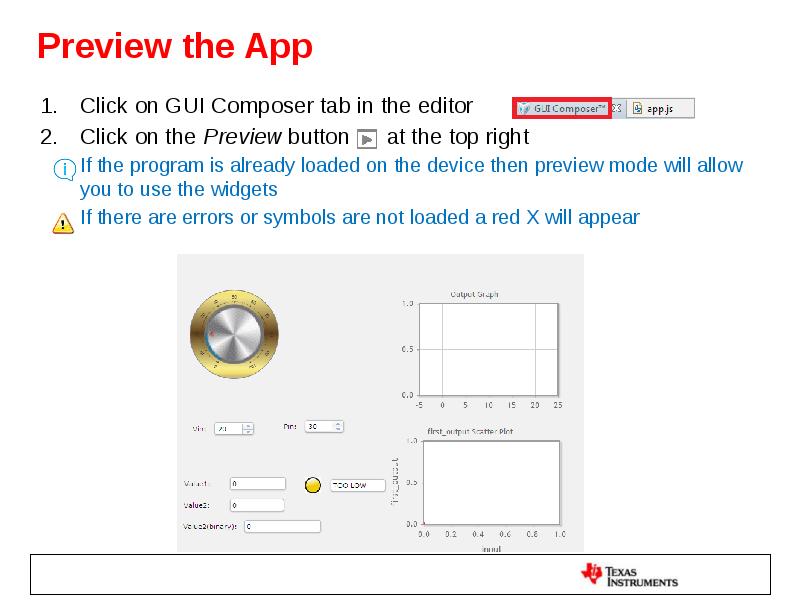
- 66. Preview the App Click on GUI Composer tab in the editor
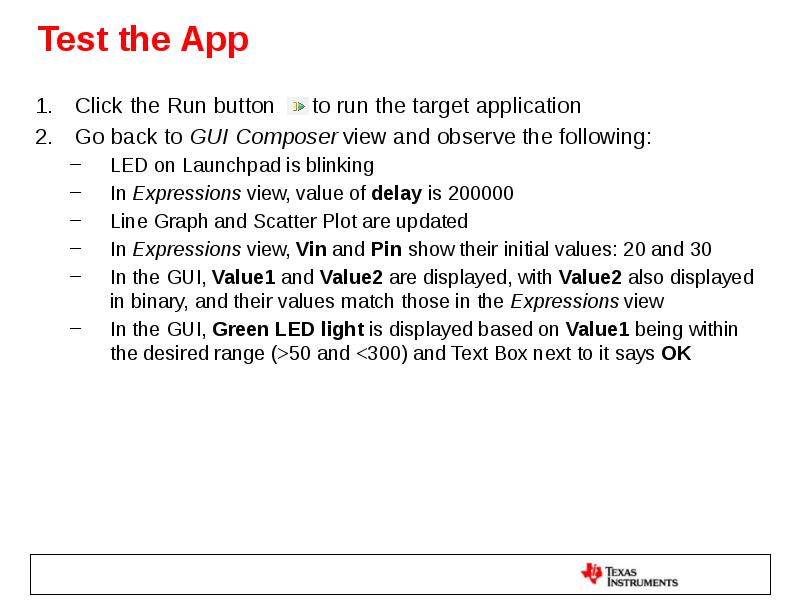
- 67. Test the App Click the Run button to run the
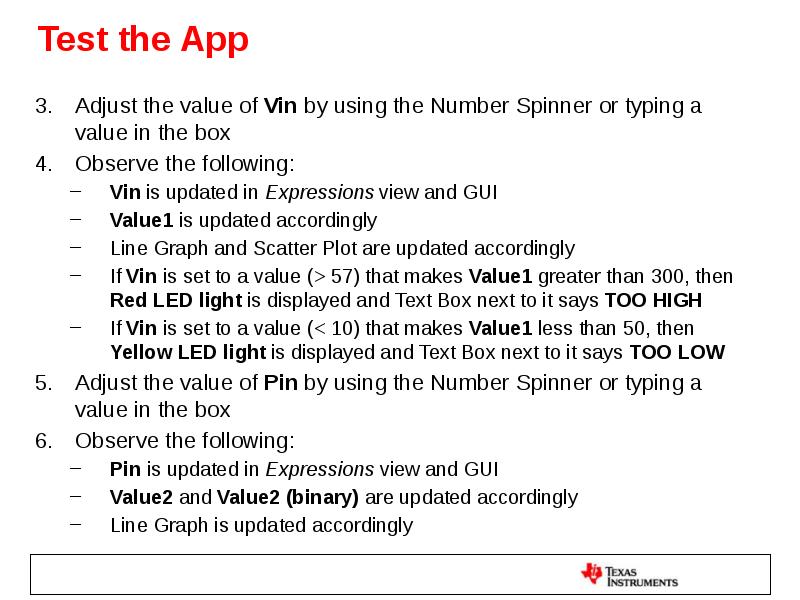
- 68. Test the App Adjust the value of Vin by using the
- 69. Clean Up Click on the Exit Preview Mode button Click
- 70. Exporting the GUI Application Click on the GUI Composer view In
- 71. Add App to GUI Composer Runtime Open a file explorer window
- 72. Run the Standalone Application Close CCS Double click on Launcher.exe located
- 73. Run the Standalone Application When configuration is complete, the GUI app
- 74. LAB 2: UART TRANSPORT
- 75. LAB conventions Lab steps are numbered for easier reference … …
- 76. UART Transport: Exercise Summary Key Objectives Use a TI-RTOS application with
- 77. Lab 2: UART Transport example 20 minutes
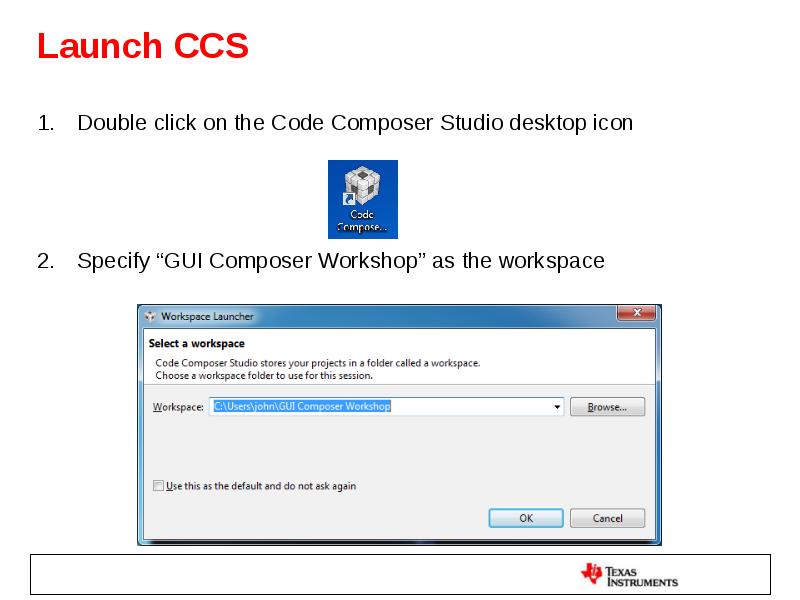
- 78. Launch CCS Double click on the Code Composer Studio desktop icon
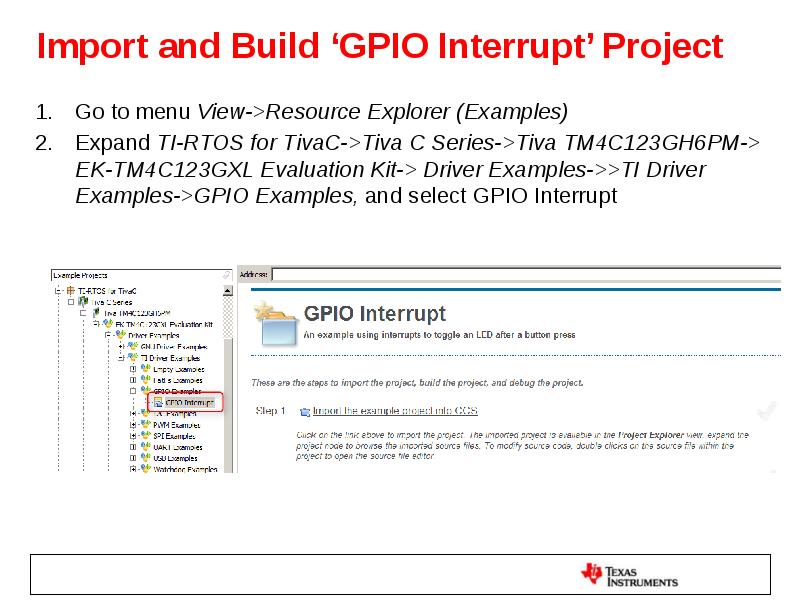
- 79. Import and Build ‘GPIO Interrupt’ Project Go to menu View->Resource Explorer
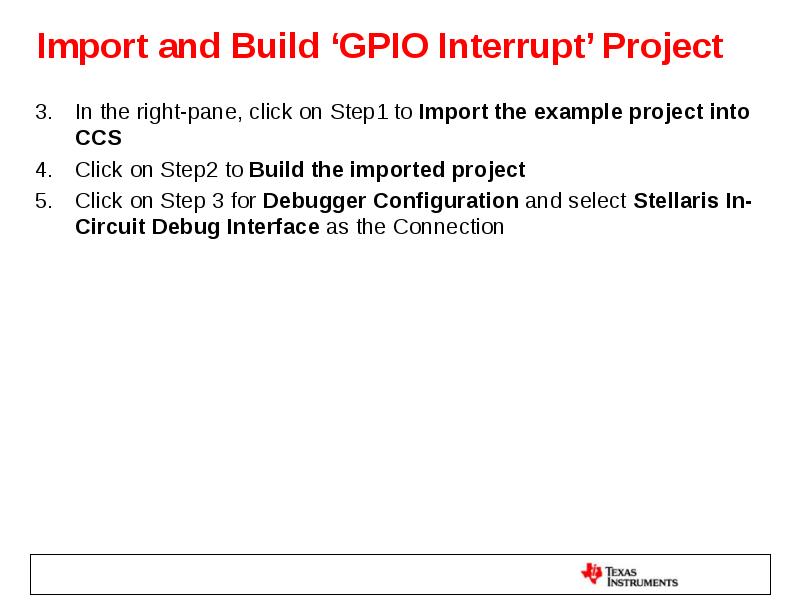
- 80. Import and Build ‘GPIO Interrupt’ Project In the right-pane, click on
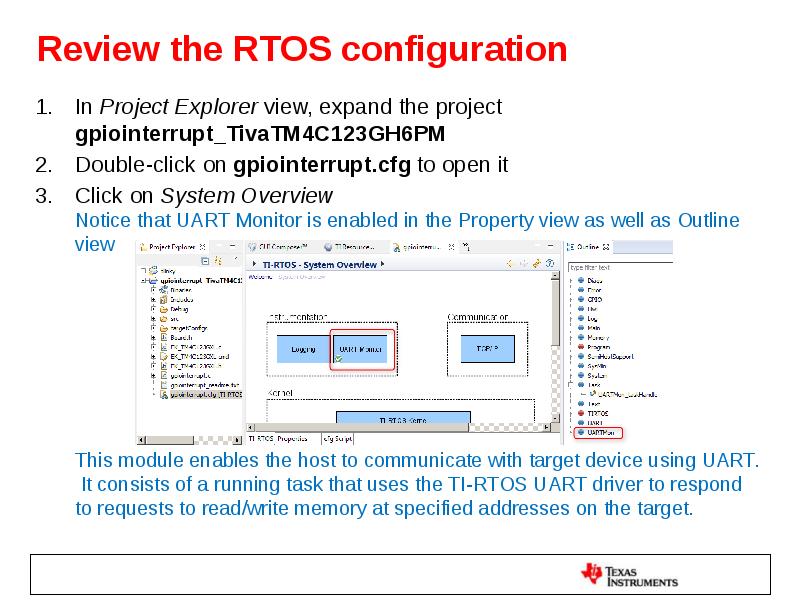
- 81. Review the RTOS configuration In Project Explorer view, expand the project
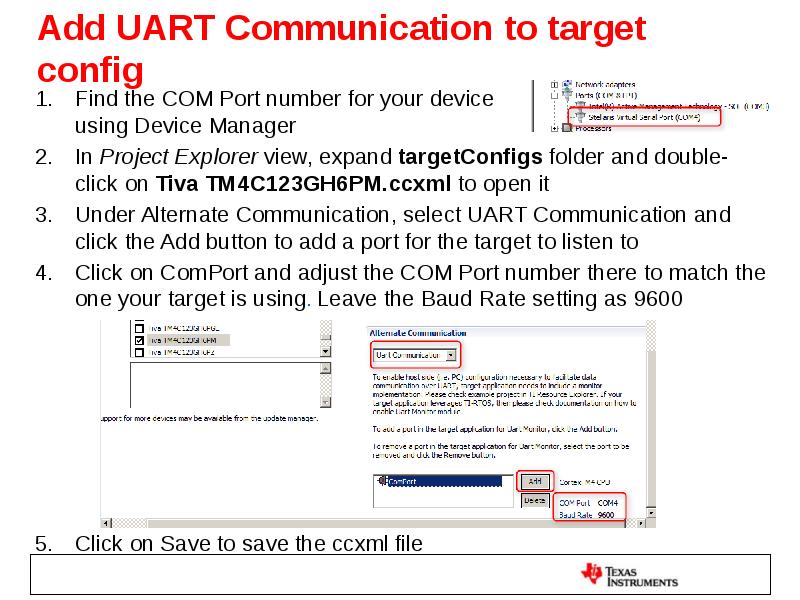
- 82. Add UART Communication to target config Find the COM Port number
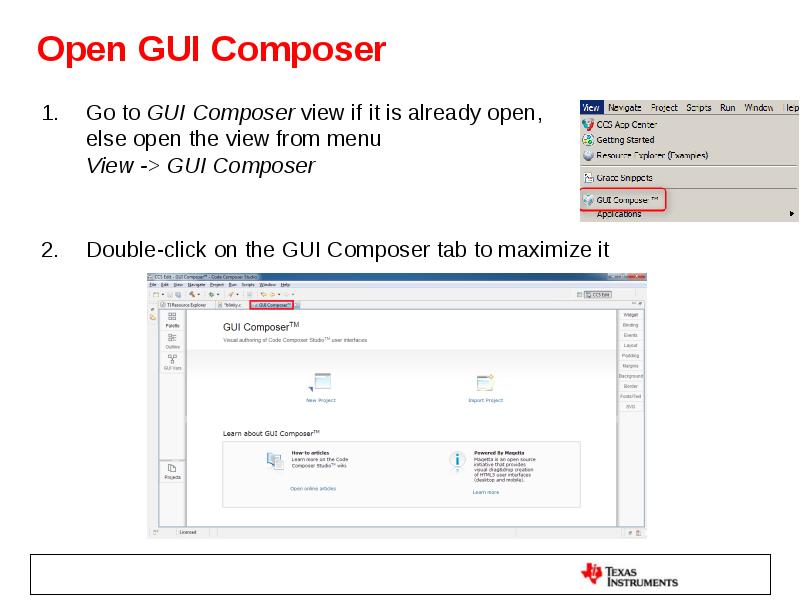
- 83. Open GUI Composer Go to GUI Composer view if it is
- 84. Create a New GUI Composer Project If GUI Composer is being
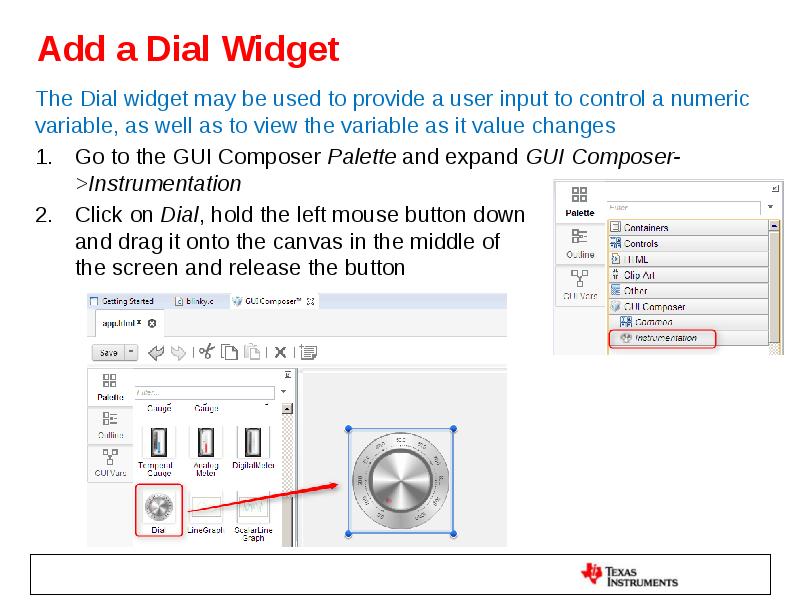
- 85. Add a Dial Widget The Dial widget may be used to
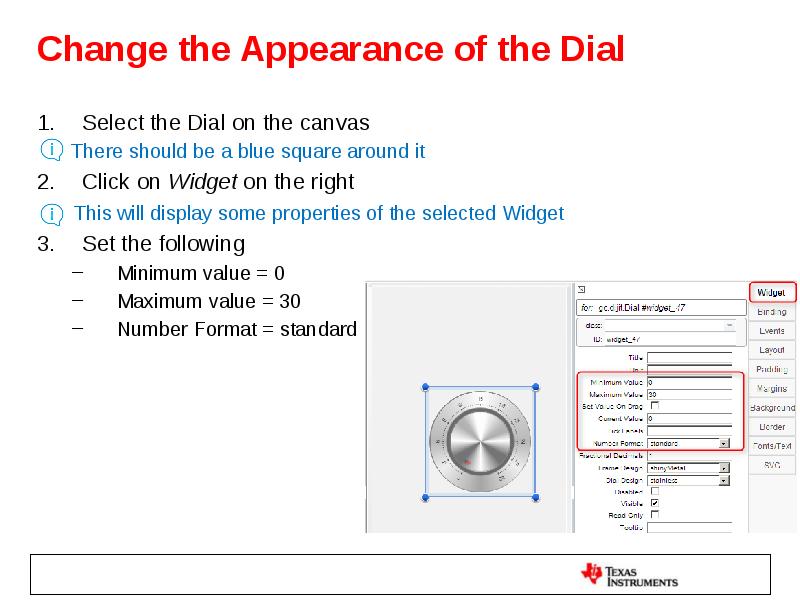
- 86. Change the Appearance of the Dial Select the Dial on the
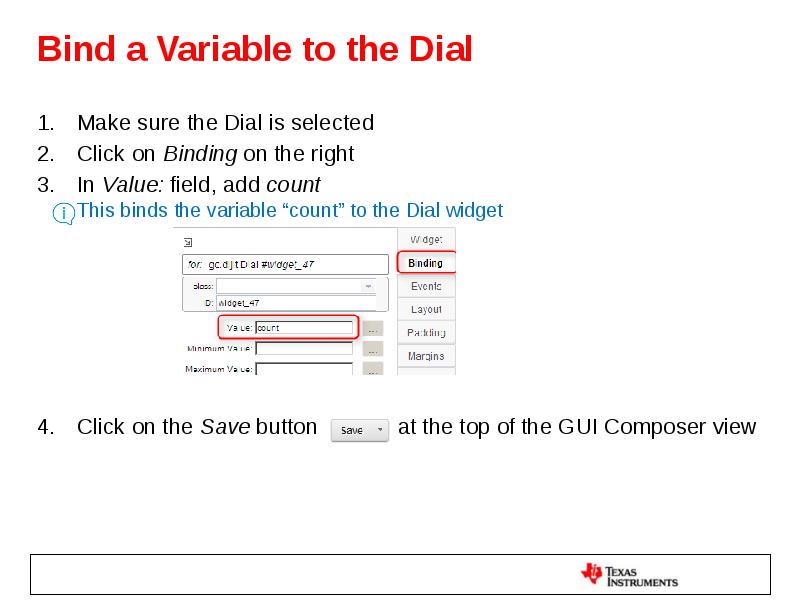
- 87. Bind a Variable to the Dial Make sure the Dial is
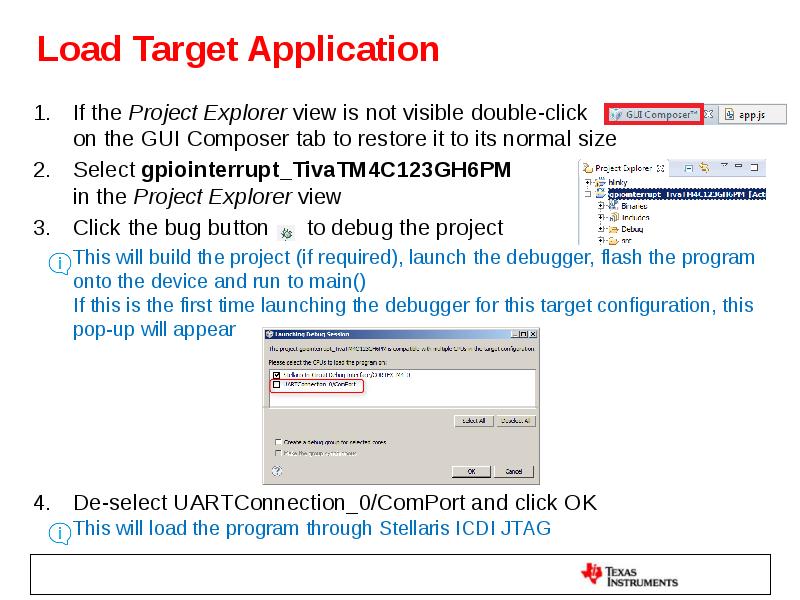
- 88. Load Target Application If the Project Explorer view is not visible
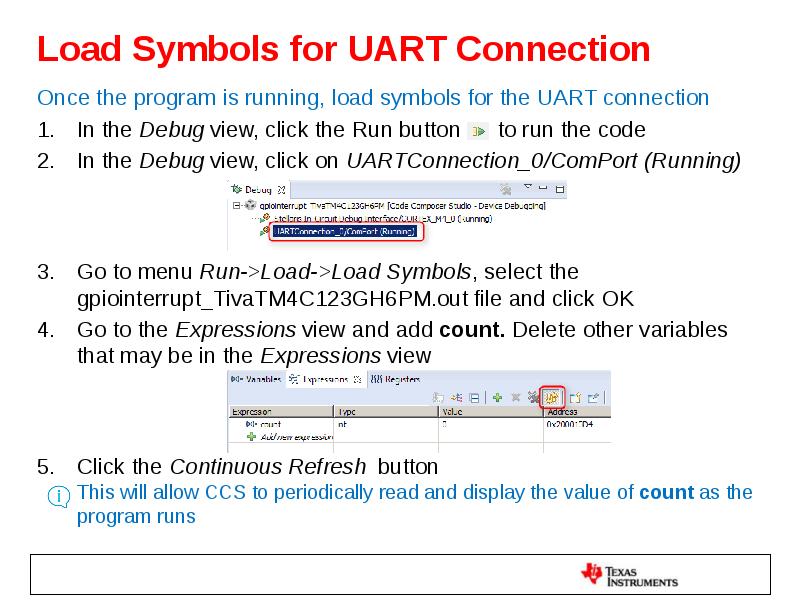
- 89. Load Symbols for UART Connection Once the program is running, load
- 90. Preview the App Click on GUI Composer tab in the editor
- 91. Test the App Press the SW1 or SW2 buttons on the
- 92. Clean Up Click on the Exit Preview Mode button Click
- 93. Exporting the GUI Application Click on the GUI Composer view In
- 94. Add App to GUI Composer Runtime Open a file explorer window
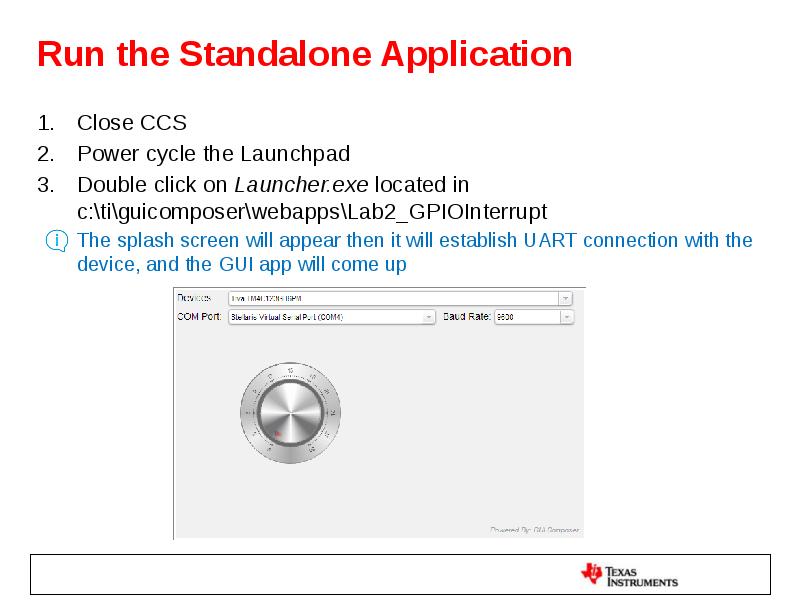
- 95. Run the Standalone Application Close CCS Power cycle the Launchpad Double
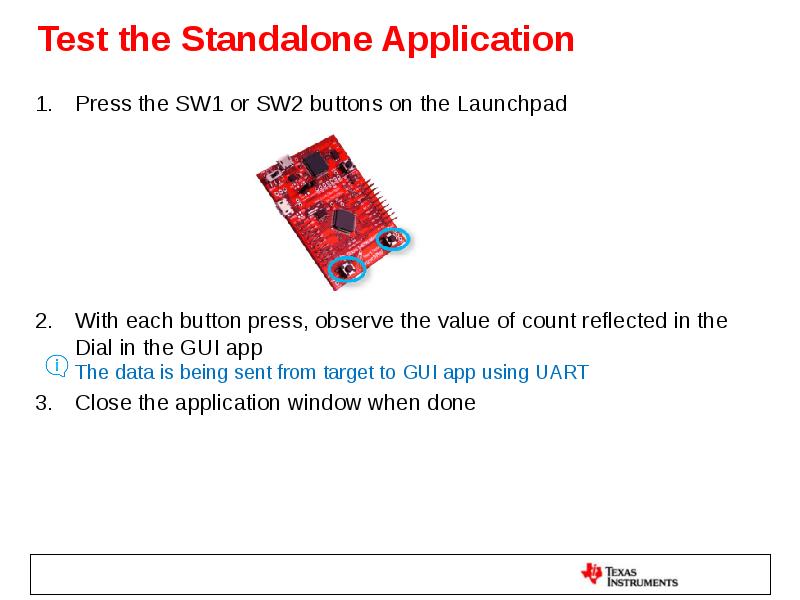
- 96. Test the Standalone Application Press the SW1 or SW2 buttons on
- 97. Exercise Summary After completing the labs you should be familiar with:
- 98. Скачать презентацию







Слайды и текст этой презентации
Слайд 1
Описание слайда:
GUI Composer
Embedded Development Tools
Слайд 2
Описание слайда:
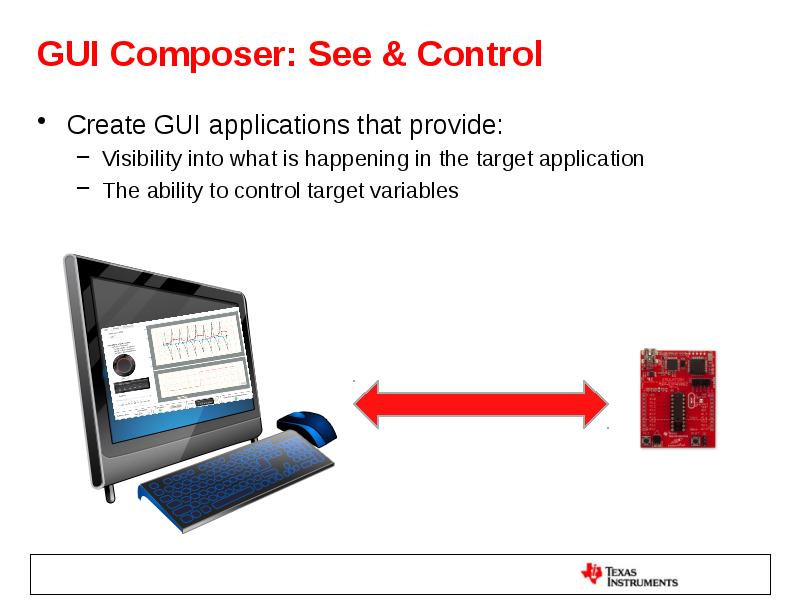
GUI Composer: See & Control
Create GUI applications that provide:
Visibility into what is happening in the target application
The ability to control target variables
Слайд 3
Описание слайда:
When to use GUI Composer
While debugging
Create simple displays that allow you to quickly see target status in a meaningful way
Standalone applications
Create GUI applications that allow you to see and control your application outside of the CCS environment
Great for demonstrations
Слайд 4
Описание слайда:
GUIs are Comprised of Widgets
GUI Composer Applications are made up of HTML5 widgets
Control widgets (dials, edit boxes…)
Let you adjust the value of target variables
Display widgets (meters, graphs, lights…)
Show the value of target variables
Слайд 5
Описание слайда:
Example Application: InstaSpin
GUI application for demonstrating motor control development kit
Widgets
Knobs
Graphs
Meters
Status lights
Sliders
Edit boxes
Слайд 6
Описание слайда:
Customize how Widgets Look
Most widgets can be customized to get the exact appearance that you want
Adjust:
Design
Color
Labels
Number format
…
Слайд 7
Описание слайда:
GUI Composer Builder
Слайд 8
Описание слайда:
Application Models
Program Model
CCS Debugger is used to translate symbols to addresses
Writes to the target are done via JTAG or via a command to a target monitor
Data is requested by the GUI application
JTAG or Serial connections are used
Streaming Model
Data is streamed from the target application up to the host
Serial or Ethernet connections are used
Слайд 9
Описание слайда:
Program Model
Symbol translation
Symbols are translated to addresses by the CCS debugger
Data display
GUI application requests data and it is read over JTAG or via request to a monitor service running on the device
Data writes
Write is performed via JTAG or can be passed to a monitor service running on the device
Слайд 10
Описание слайда:
Streaming Model
Data display
Target application pushes data up to the GUI for display
Data writes
Data is passed to a monitor service running on the device
Слайд 11
Описание слайда:
Adjusting Data Format
It is possible to adjust the value of data that is displayed
Data may be stored in 1 unit of measure on the device but you wish to display it in the GUI in another
Pre-processing Function
Takes the value from the target and adjusts it for display
Post-processing Function
Takes the value entered in the widget and adjusts it prior to writing it to the device
Слайд 12
Описание слайда:
Types of Applications
CCS Plug-in
Feature within CCS
Available from View menu within CCS
Standalone application
Can be run without CCS
Requires the GUI Composer Runtime to be installed
http://processors.wiki.ti.com/index.php/GUI_Composer
Used for larger applications
Слайд 13
Описание слайда:
Standalone Application
Configuration View
Appears when the standalone app starts up and shows the progress of the connection to the device being initialized, program loaded/flashed and then run
Can be accessed later if you need to re-initialize the target
Application View
Switches to this view when initialization is complete
Shows all your widgets
Слайд 14
Описание слайда:
GUI Composer Runtime
GUI Composer applications need access to services (target read/write…)
These services can be provided by CCS, or if CCS is not present then they are provided by the GUI Composer Runtime
Subset of CCS Functionality
Can be bundled with GUI Composer applications
Слайд 15
Описание слайда:
Lab Requirements
Software:
Code Composer Studio v6.1.1.00022
GUI Composer (add-on in CCS)
TivaWare for C series 2.1.1.71
TI-RTOS for TivaC the 2.14.00.10 (only required for Lab2)
GUI Composer Runtime v6.1.1
Hardware:
Tiva C TM4C123GXL Launchpad
1 micro USB cable (included with LaunchPad kit)
Note: Labs should also run on TM4C1294XL Launchpad as long as appropriate example projects for that device are used
See Installation Instructions in next slide
Слайд 16
Описание слайда:
Installation Instructions
Download and install Code Composer Studio v6.1.1.00022 from
http://processors.wiki.ti.com/index.php/Download_CCS
Start CCS and click on App Center in the Getting Started view or open App Center from menu View->CCS App Center
In App Center:
Under Code Composer Studio Add-ons, select the following and install
GUI Composer
TI-RTOS for TivaC (only required for Lab2)
Under Code Composer Studio Standalone Software, select TivaWare, click on Download, then download and install to c:\ti
Download GUI Composer Runtime v6.1.1 from http://processors.wiki.ti.com/index.php/Category:GUI_Composer#GUI_Composer_Downloads and install to c:\ti
Слайд 17
Описание слайда:
Tiva C LaunchPad: Hardware Setup
Слайд 18
Описание слайда:
LAB 1: JTAG TRANSPORT
LAB1A: create and use dial widget
lab1b: create and use more widgets
Слайд 19
Описание слайда:
LAB conventions
Lab steps are numbered for easier reference
…
…
Explanations, notes, warnings are written in blue
Warnings are shown with
Information is marked with
Tips and answers are marked with
Questions are marked with
Слайд 20
Описание слайда:
JTAG Transport: Exercise Summary
Key Objectives
Create a GUI that will create different widgets for controlling and visualizing target variables
Debug the basic blinky program and then a modified version of the blinky program
Run GUI composer to view and control the application
Tools and Concepts Covered
JTAG transport connection
GUI Builder tool
Variable binding
Target variable modification
Target variable display
Pre/post processing functions
Слайд 21
Описание слайда:
LAB1A: create and use dial widget
15 minutes
Слайд 22
Описание слайда:
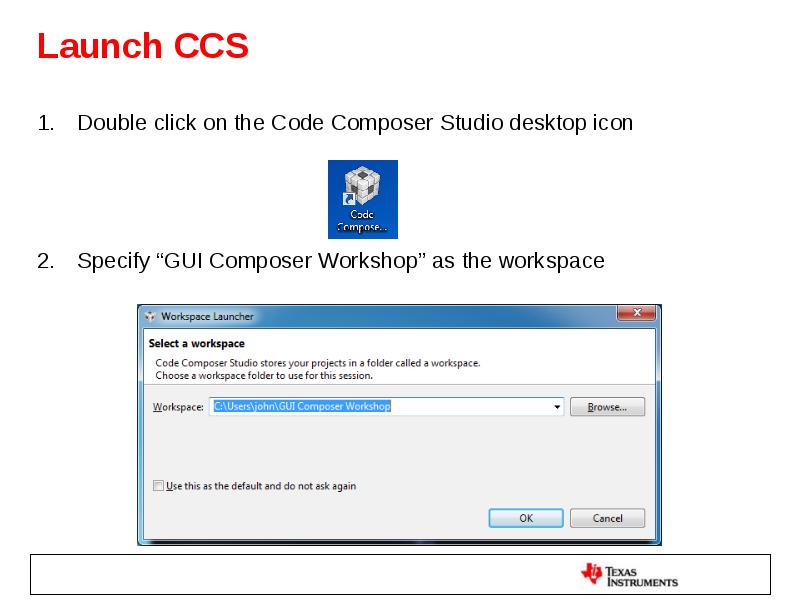
Launch CCS
Double click on the Code Composer Studio desktop icon
Specify “GUI Composer Workshop” as the workspace
Слайд 23
Описание слайда:
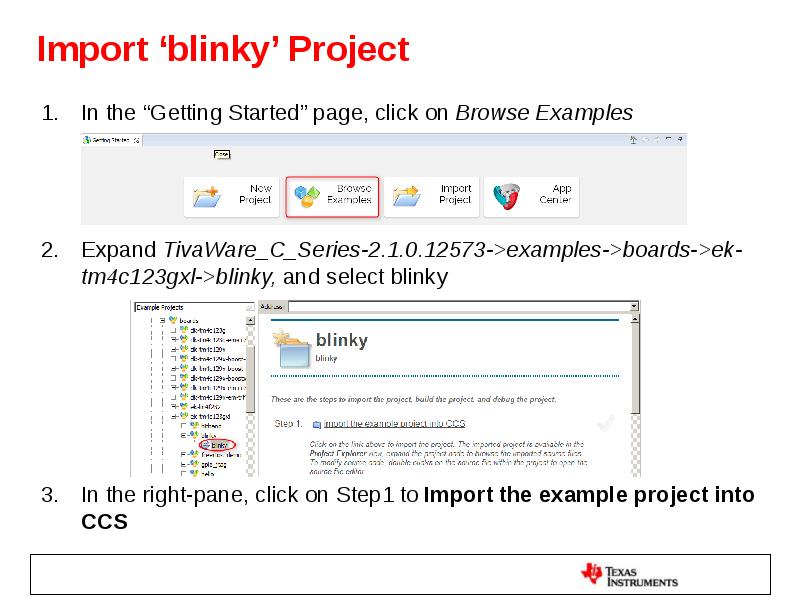
Import ‘blinky’ Project
In the “Getting Started” page, click on Browse Examples
Expand TivaWare_C_Series-2.1.0.12573->examples->boards->ek-tm4c123gxl->blinky, and select blinky
In the right-pane, click on Step1 to Import the example project into CCS
Слайд 24
Описание слайда:
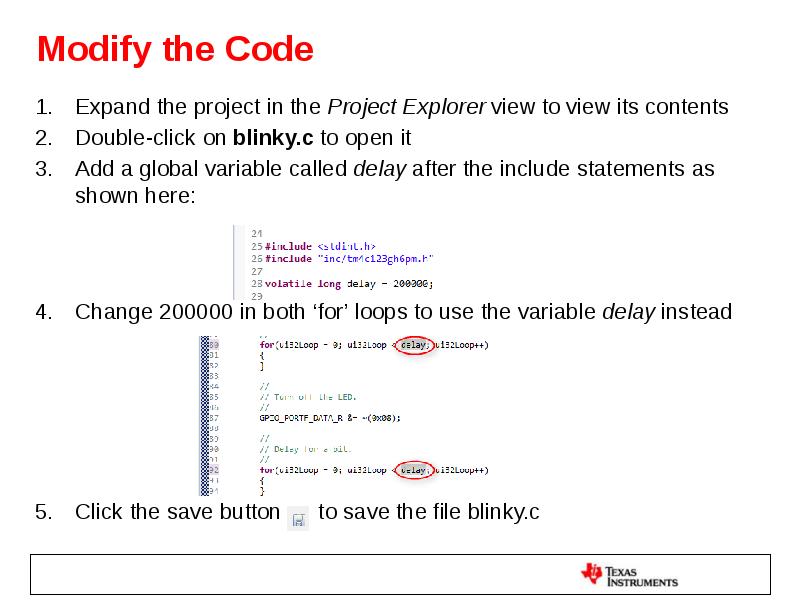
Modify the Code
Expand the project in the Project Explorer view to view its contents
Double-click on blinky.c to open it
Add a global variable called delay after the include statements as shown here:
Change 200000 in both ‘for’ loops to use the variable delay instead
Click the save button to save the file blinky.c
Слайд 25
Описание слайда:
Open GUI Composer
Go to menu View -> GUI Composer
Double-click on the GUI Composer tab to maximize it
Слайд 26
Описание слайда:
Create a New GUI Composer Project
Click on the New Project button
Name the project Lab1Blink
Click Ok
This opens a file called app.html in the GUI Composer Editor which is your HTML5 source file. On the left-hand side is the Palette and Projects list. The middle area is the canvas.
Слайд 27
Описание слайда:
Add a Dial Widget
The Dial widget may be used to provide a user input to control a numeric variable
Go to the Palette on the left. It should be open
by default
Expand GUI Composer->Instrumentation
Click on Dial, hold the left mouse button down
and drag it onto the upper left part of the canvas
in the middle of the screen and release the button
Слайд 28
Описание слайда:
Change the Appearance of the Dial
Select the Dial on the canvas
There should be a blue square around it
Click on Widget on the right
This will display some properties of the selected Widget
Set the following
Minimum value = 0
Maximum value = 100
Number Format = standard
Frame Design = brass
Dial Design = turned
Слайд 29
Описание слайда:
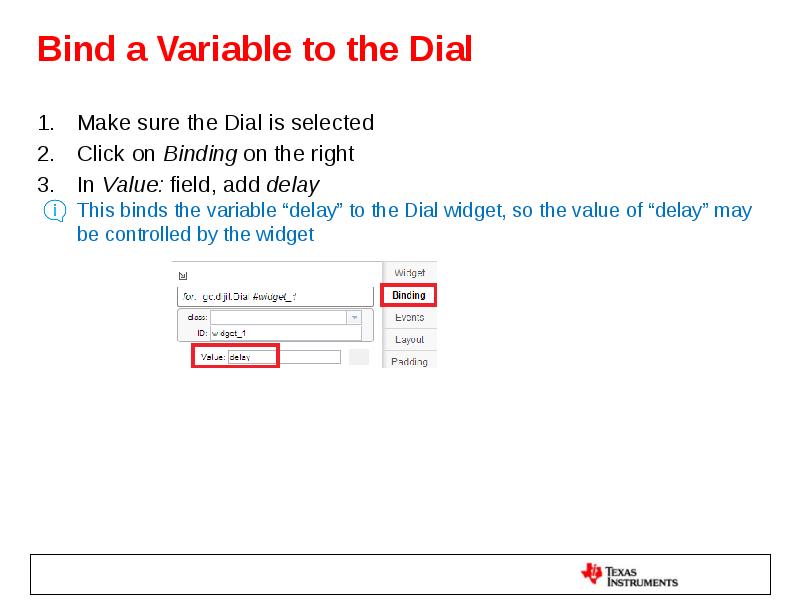
Bind a Variable to the Dial
Make sure the Dial is selected
Click on Binding on the right
In Value: field, add delay
This binds the variable “delay” to the Dial widget, so the value of “delay” may be controlled by the widget
Слайд 30
Описание слайда:
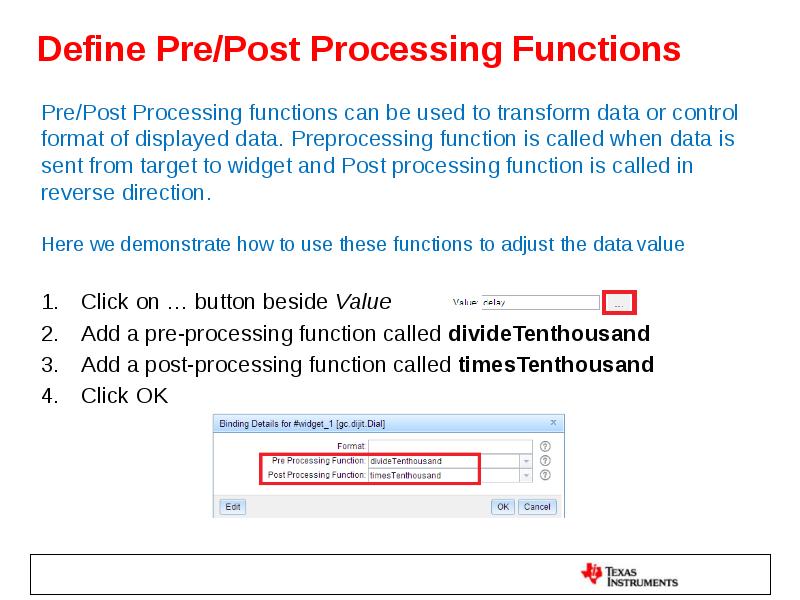
Define Pre/Post Processing Functions
Pre/Post Processing functions can be used to transform data or control format of displayed data. Preprocessing function is called when data is sent from target to widget and Post processing function is called in reverse direction.
Here we demonstrate how to use these functions to adjust the data value
Click on … button beside Value
Add a pre-processing function called divideTenthousand
Add a post-processing function called timesTenthousand
Click OK
Слайд 31
Описание слайда:
Define Pre/Post Processing Functions
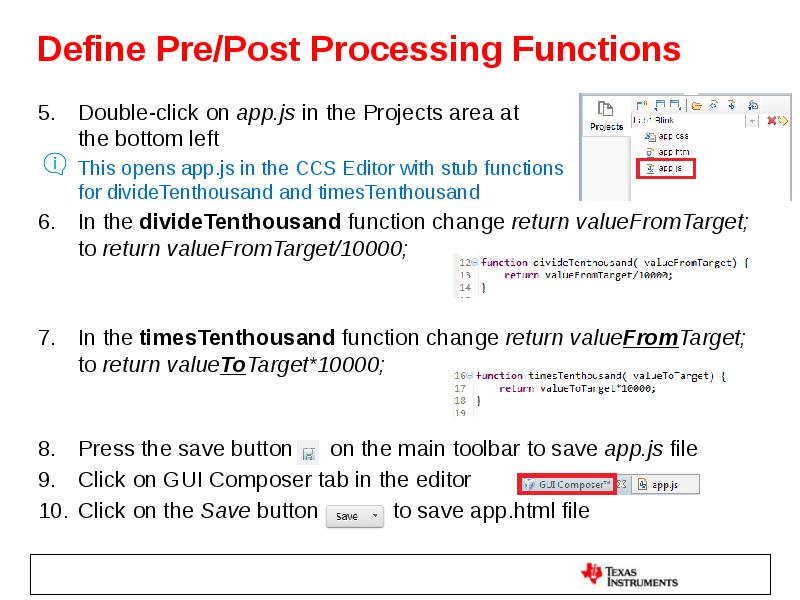
Double-click on app.js in the Projects area at
the bottom left
This opens app.js in the CCS Editor with stub functions
for divideTenthousand and timesTenthousand
In the divideTenthousand function change return valueFromTarget; to return valueFromTarget/10000;
In the timesTenthousand function change return valueFromTarget; to return valueToTarget*10000;
Press the save button on the main toolbar to save app.js file
Click on GUI Composer tab in the editor
Click on the Save button to save app.html file
Слайд 32
Описание слайда:
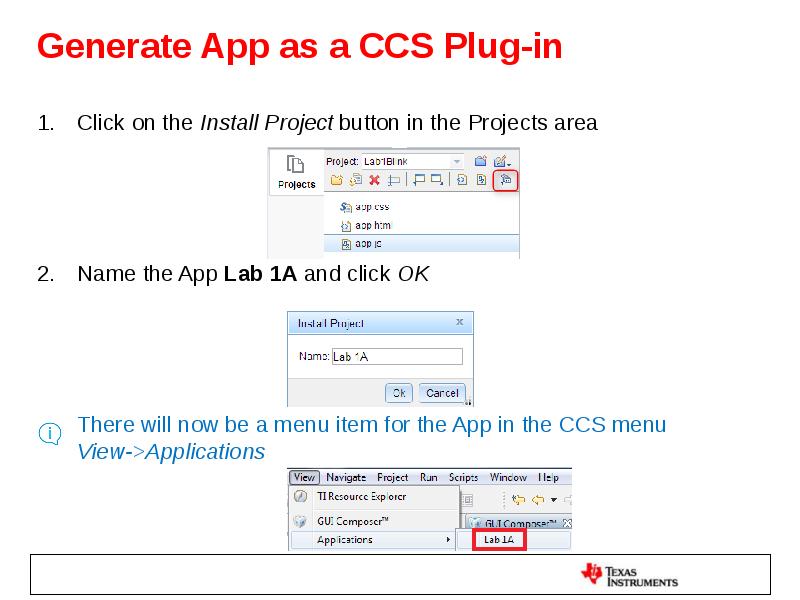
Generate App as a CCS Plug-in
Click on the Install Project button in the Projects area
Name the App Lab 1A and click OK
There will now be a menu item for the App in the CCS menu
View->Applications
Слайд 33
Описание слайда:
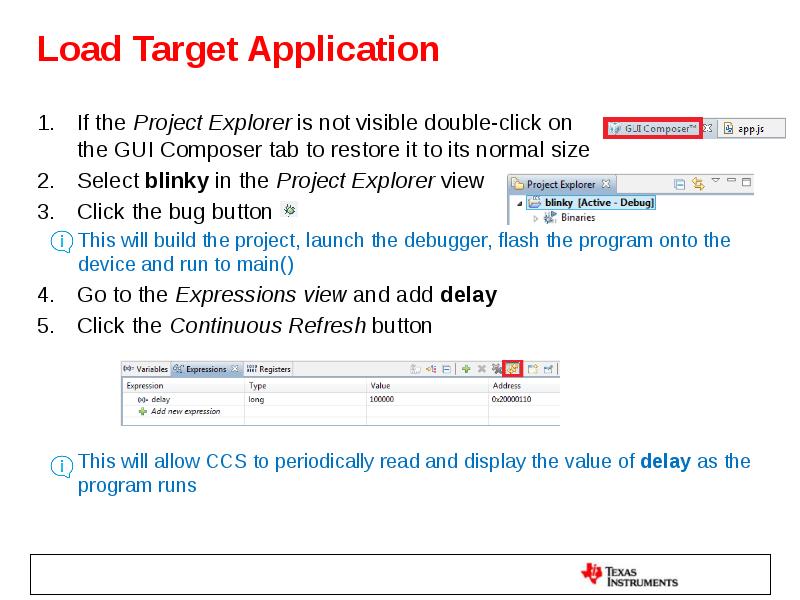
Load Target Application
If the Project Explorer is not visible double-click on
the GUI Composer tab to restore it to its normal size
Select blinky in the Project Explorer view
Click the bug button
This will build the project, launch the debugger, flash the program onto the device and run to main()
Go to the Expressions view and add delay
Click the Continuous Refresh button
This will allow CCS to periodically read and display the value of delay as the program runs
Слайд 34
Описание слайда:
Preview the App
Click on GUI Composer tab in the editor
Click on the Preview button at the top right
If the program is already loaded on the device, as in this case, then preview mode will allow you to use the widgets
If there are errors or symbols are not loaded then a red X will appear next to the widgets
Слайд 35
Описание слайда:
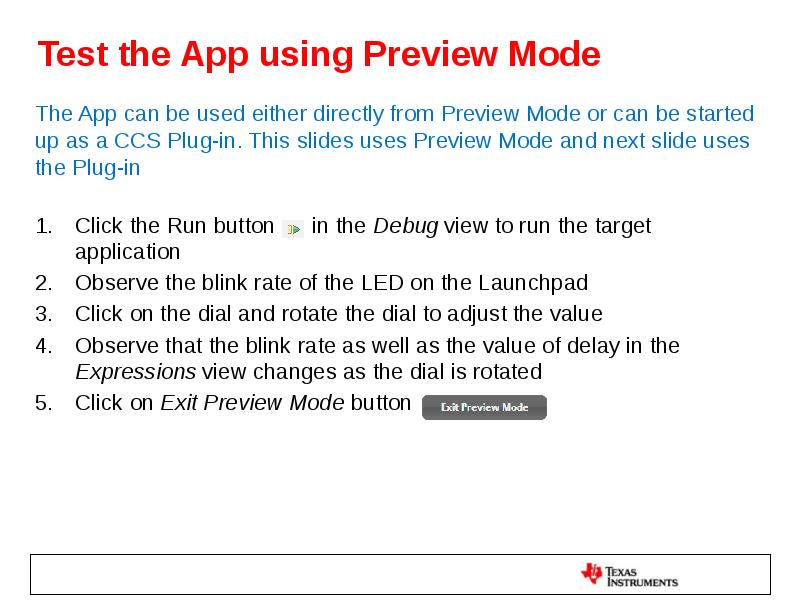
Test the App using Preview Mode
The App can be used either directly from Preview Mode or can be started up as a CCS Plug-in. This slides uses Preview Mode and next slide uses the Plug-in
Click the Run button in the Debug view to run the target application
Observe the blink rate of the LED on the Launchpad
Click on the dial and rotate the dial to adjust the value
Observe that the blink rate as well as the value of delay in the Expressions view changes as the dial is rotated
Click on Exit Preview Mode button
Слайд 36
Описание слайда:
Test the App using Plug-in
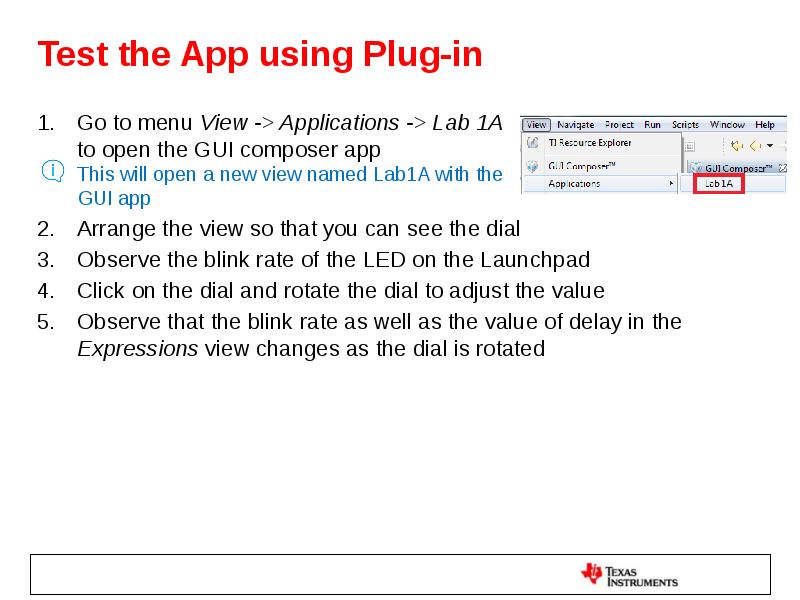
Go to menu View -> Applications -> Lab 1A
to open the GUI composer app
This will open a new view named Lab1A with the
GUI app
Arrange the view so that you can see the dial
Observe the blink rate of the LED on the Launchpad
Click on the dial and rotate the dial to adjust the value
Observe that the blink rate as well as the value of delay in the Expressions view changes as the dial is rotated
Слайд 37
Описание слайда:
Clean Up
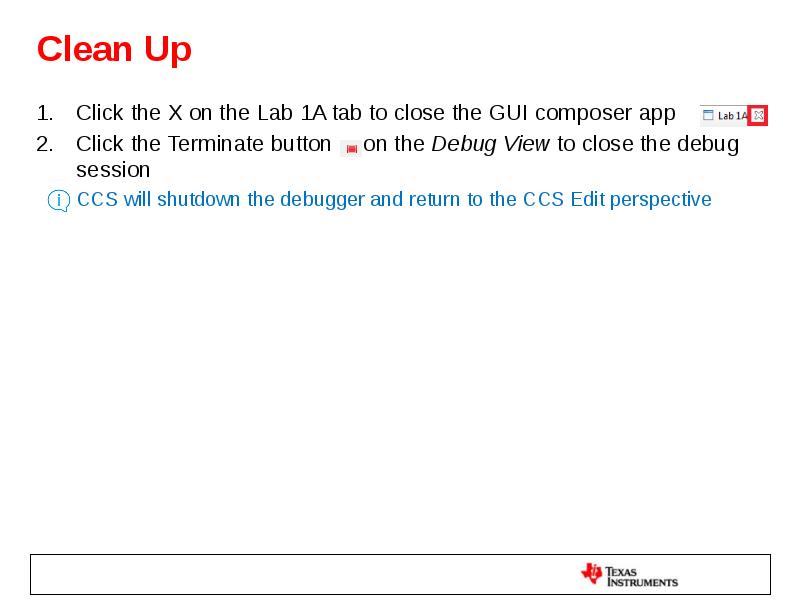
Click the X on the Lab 1A tab to close the GUI composer app
Click the Terminate button on the Debug View to close the debug session
CCS will shutdown the debugger and return to the CCS Edit perspective
Слайд 38
Описание слайда:
lab1b: create and use more widgets
30 minutes
Слайд 39
Описание слайда:
Modify the Code
This step modifies the program code to add a computation loop
In Project Explorer view, double-click on blinky.c to open it if it is not already open
Add a call to Init_input() before the while(1) loop
Add a call to Compute_output() after the first for loop
Слайд 40
Описание слайда:
Modify the Code
Add the following code at the top of the file after the declaration of variable delay
Click the Save button
to save the file blinky.c
Do a quick review of the code
to see what computations are
being done
Слайд 41
Описание слайда:
Add a Line Graph Widget
The LineGraph widget is a graph that can show up to 8 lines where each line represents the values of a variable of Array type
Go to the GUI Composer view and double-click on the tab to maximize it
Expand GUI Composer->Instrumentation if it is not already open
Click on LineGraph, hold the left mouse button
down, drag it onto the canvas to the right of
the Dial, and release the button
Adjust the size to make the widget smaller if desired
Слайд 42
Описание слайда:
Set the Properties of the Line Graph
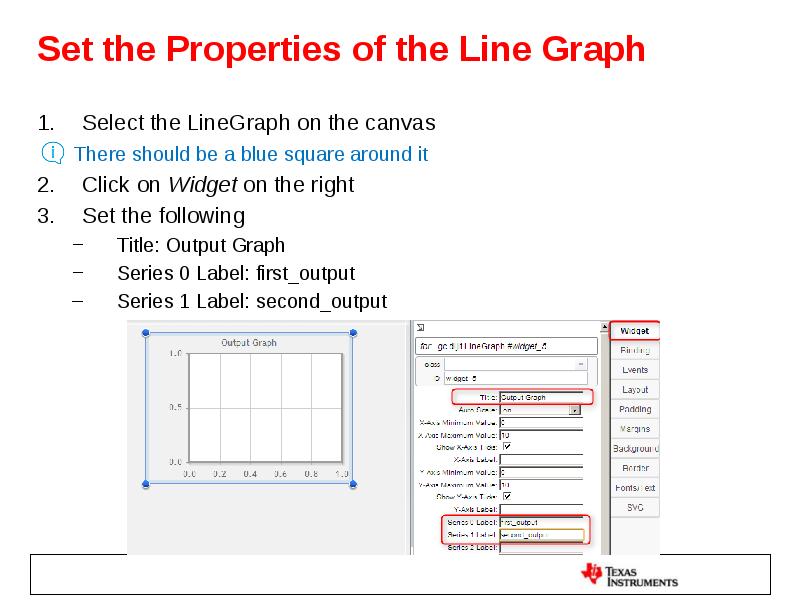
Select the LineGraph on the canvas
There should be a blue square around it
Click on Widget on the right
Set the following
Title: Output Graph
Series 0 Label: first_output
Series 1 Label: second_output
Слайд 43
Описание слайда:
Bind Variables to the Line Graph
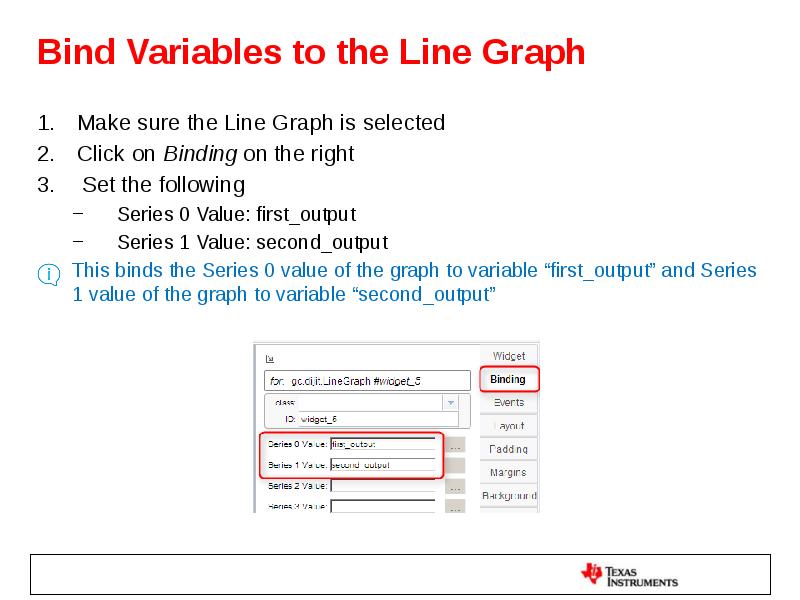
Make sure the Line Graph is selected
Click on Binding on the right
Set the following
Series 0 Value: first_output
Series 1 Value: second_output
This binds the Series 0 value of the graph to variable “first_output” and Series 1 value of the graph to variable “second_output”
Слайд 44
Описание слайда:
Add a Scatter Plot Widget
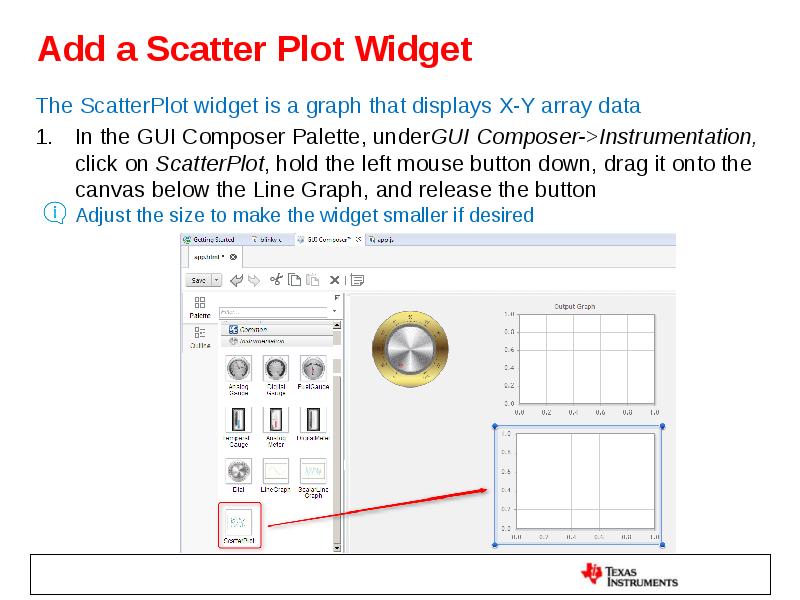
The ScatterPlot widget is a graph that displays X-Y array data
In the GUI Composer Palette, underGUI Composer->Instrumentation, click on ScatterPlot, hold the left mouse button down, drag it onto the canvas below the Line Graph, and release the button
Adjust the size to make the widget smaller if desired
Слайд 45
Описание слайда:
Set the Properties of the Scatter Plot
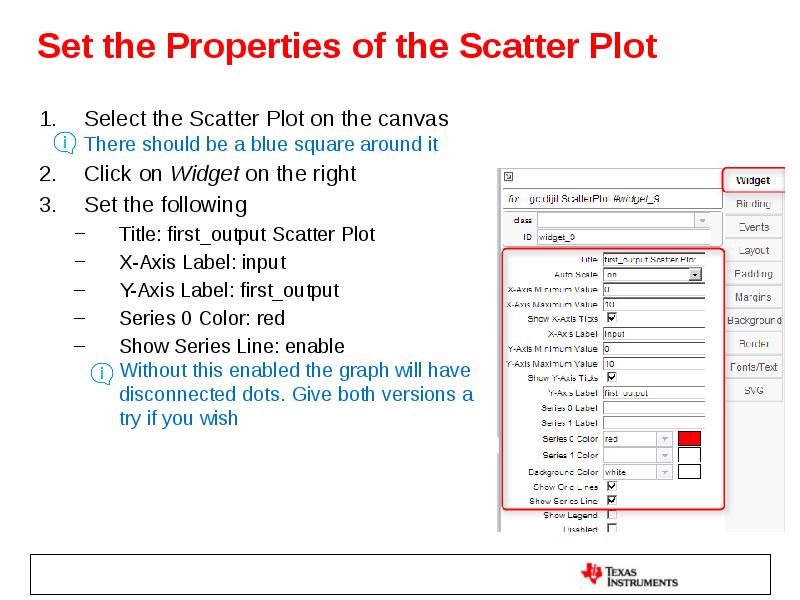
Select the Scatter Plot on the canvas
There should be a blue square around it
Click on Widget on the right
Set the following
Title: first_output Scatter Plot
X-Axis Label: input
Y-Axis Label: first_output
Series 0 Color: red
Show Series Line: enable
Without this enabled the graph will have
disconnected dots. Give both versions a
try if you wish
Слайд 46
Описание слайда:
Bind Variables to the Scatter Plot
Make sure the ScatterPlot is selected on the canvas
Click on Binding on the right
Set the following
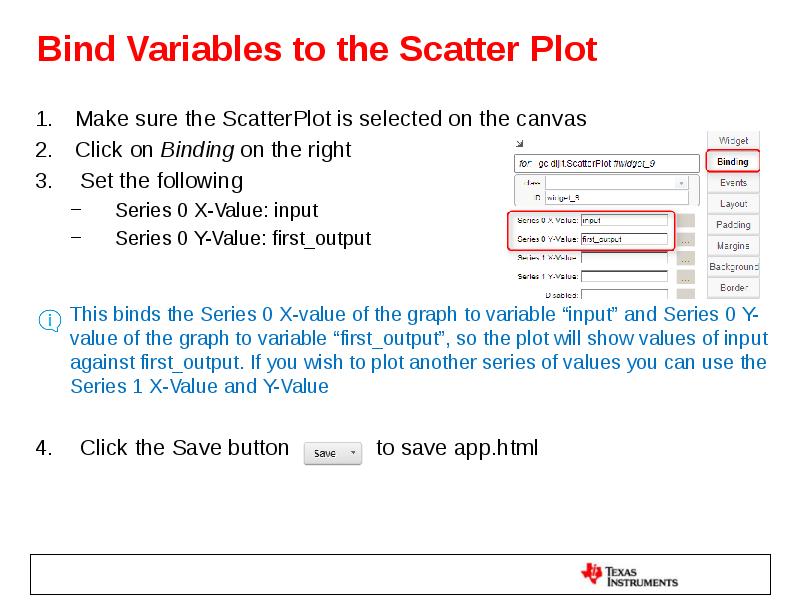
Series 0 X-Value: input
Series 0 Y-Value: first_output
This binds the Series 0 X-value of the graph to variable “input” and Series 0 Y-value of the graph to variable “first_output”, so the plot will show values of input against first_output. If you wish to plot another series of values you can use the Series 1 X-Value and Y-Value
Click the Save button to save app.html
Слайд 47
Описание слайда:
Add Label Widgets
The Label widget is used to add text to the GUI application
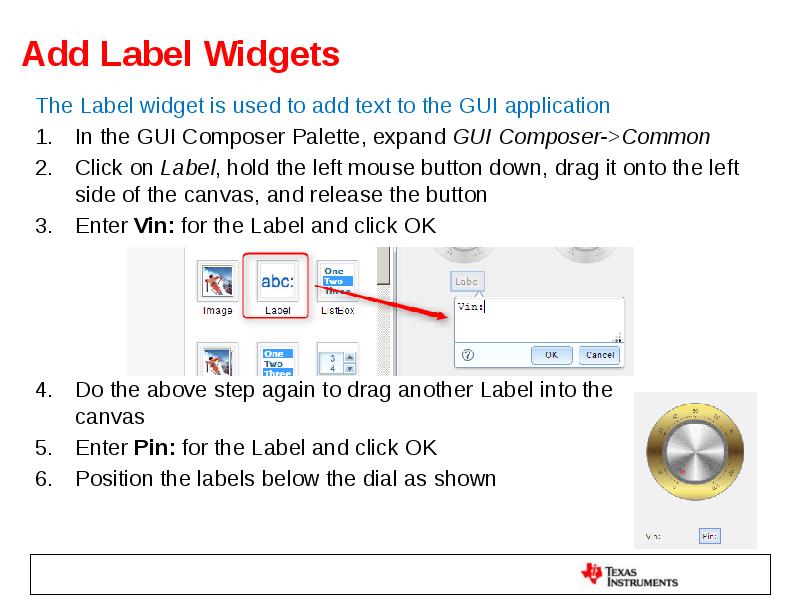
In the GUI Composer Palette, expand GUI Composer->Common
Click on Label, hold the left mouse button down, drag it onto the left side of the canvas, and release the button
Enter Vin: for the Label and click OK
Do the above step again to drag another Label into the
canvas
Enter Pin: for the Label and click OK
Position the labels below the dial as shown
Слайд 48
Описание слайда:
Add Number Spinner Widgets
The NumberSpinner widget provides arrows to increment/decrement values and is useful to provide fine value control in your application. It can also accept values that user enters with a keyboard
In the GUI Composer Palette, under GUI Composer->Common, click on NumberSpinner, hold the left mouse button down and drag it onto the canvas and release the button
Do the above step again to drag another NumberSpinner into the canvas
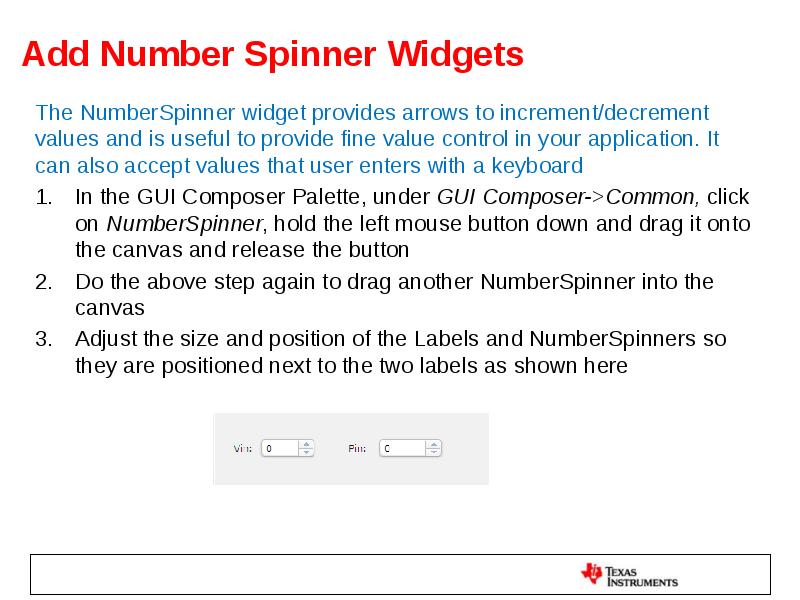
Adjust the size and position of the Labels and NumberSpinners so they are positioned next to the two labels as shown here
Слайд 49
Описание слайда:
Set Properties and Bindings for Number Spinners
Select the NumberSpinner next to the Vin Label
There should be a blue square around it
Click on Widget on the right
Set the following
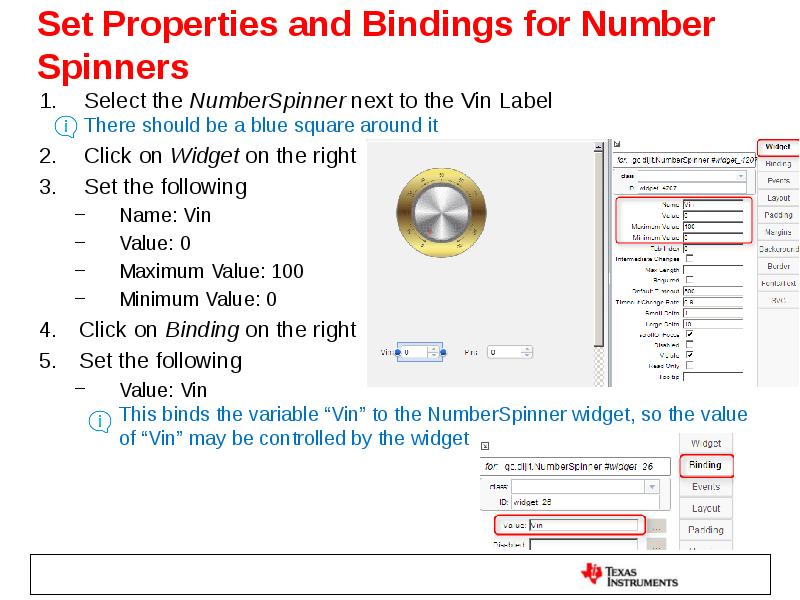
Name: Vin
Value: 0
Maximum Value: 100
Minimum Value: 0
Click on Binding on the right
Set the following
Value: Vin
This binds the variable “Vin” to the NumberSpinner widget, so the value of “Vin” may be controlled by the widget
Слайд 50
Описание слайда:
Set Properties and Bindings for Number Spinners
Select the NumberSpinner next to the Pin Label
There should be a blue square around it
Click on Widget on the right
Set the following
Name: Pin
Value: 0
Maximum Value: 100
Minimum Value: 0
Click on Binding on the right
Set the following
Value: Pin
This binds the variable “Pin” to the NumberSpinner widget, so the value of “Pin” may be controlled by the widget
Слайд 51
Описание слайда:
Add more Label Widgets
In the GUI Composer Palette, under GUI Composer->Common, click on Label, hold the left mouse button down and drag it onto the canvas and release the button
Enter Value1: for the Label and click OK
Drag two more Labels into the canvas
Enter Value2: for the second Label and click OK
Enter Value2 (binary): for the third Label and click OK
Position the Labels below the NumberSpinners as shown
here or as you prefer on the canvas
OPTIONAL: Select one of the Labels, click
on Fonts/Text on the right and modify size,
color etc. to see its effect on the Label
Слайд 52
Описание слайда:
Add TextBox Widgets
The TextBox widget can be used to display a string or a number and can allow user to enter strings or values
In the GUI Composer Palette, click on TextBox, hold the left mouse button down and drag it onto the canvas and release the button
Do the above step two more times to drag two more TextBoxes into the canvas
Adjust the size of the TextBoxes and position them besides each of the Labels from the previous slide
Click the Save button to save app.html
Слайд 53
Описание слайда:
Set Bindings for TextBoxes
Select the first TextBox next to Label Value1
Click on Binding on the right
Set the following
Value: Value1
This binds the variable “Value1” to the
TextBox widget, so “Value1” can be displayed
in the widget
Select the second TextBox next to Label Value2
Click on Binding on the right
Set the following
Value: Value2
This binds the variable “Value2” to the TextBox widget, so “Value2” can be displayed in the widget
Слайд 54
Описание слайда:
Set Bindings for TextBoxes
Select the third TextBox next to Label Value2 (binary)
Click on Binding on the right
Set the following
Value: Value2
This binds the variable “Value2” to the TextBox
widget, so “Value2” can be displayed in the widget
Click on … button beside Value2
Add a pre-processing function called converttoBinary
Click on Edit button
This opens the file app.js in the
CCS Editor with a stub function
If you are prompted asking if you
want to replace the contents of
app.js with these changes, click Yes
Слайд 55
Описание слайда:
Set Bindings for TextBoxes
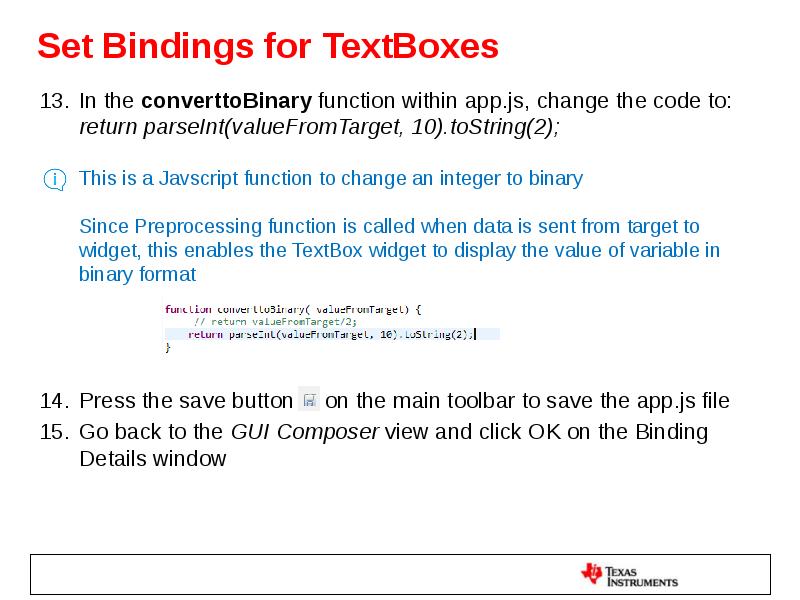
In the converttoBinary function within app.js, change the code to:
return parseInt(valueFromTarget, 10).toString(2);
This is a Javscript function to change an integer to binary
Since Preprocessing function is called when data is sent from target to widget, this enables the TextBox widget to display the value of variable in binary format
Press the save button on the main toolbar to save the app.js file
Go back to the GUI Composer view and click OK on the Binding Details window
Слайд 56
Описание слайда:
Add MultiImage Widget
The MultiImage widget can be used to display visual status information, such as a selected image, based on the value of a variable it is bound to. By default, first image will be displayed when value of variable=0, second image when value of variable=1 and so on
Here the MultiImage widget is used to display a LED image of particular color based on the value of variable “Value1”
The steps below upload the images into the GUI Composer project
In the GUI Composer Projects view, click on Add Files
Click on Select Files
Browse to c:\guicomposer_workshop, select red.jpg and
click Open
Click on Upload
Do steps 2 through 4 for yellow.jpg and green.jpg
Close the Add File pop-up window
The files should now be in the Projects view
Слайд 57
Описание слайда:
Add MultiImage Widget
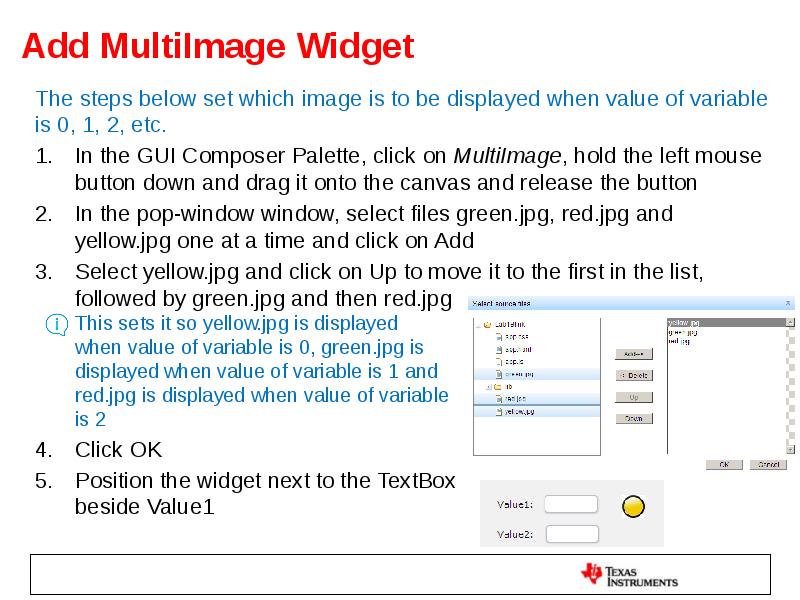
The steps below set which image is to be displayed when value of variable is 0, 1, 2, etc.
In the GUI Composer Palette, click on MultiImage, hold the left mouse button down and drag it onto the canvas and release the button
In the pop-window window, select files green.jpg, red.jpg and yellow.jpg one at a time and click on Add
Select yellow.jpg and click on Up to move it to the first in the list, followed by green.jpg and then red.jpg
This sets it so yellow.jpg is displayed
when value of variable is 0, green.jpg is
displayed when value of variable is 1 and
red.jpg is displayed when value of variable
is 2
Click OK
Position the widget next to the TextBox
beside Value1
Слайд 58
Описание слайда:
Set Binding for MultiImage
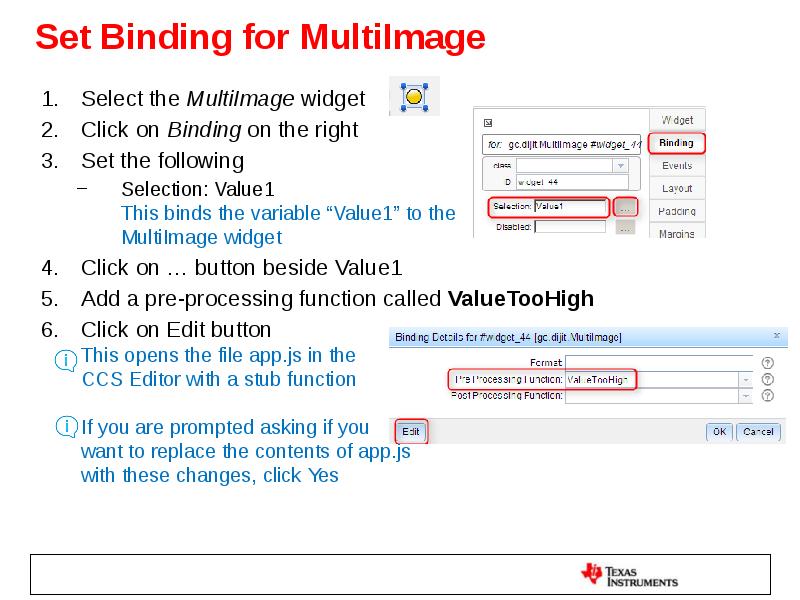
Select the MultiImage widget
Click on Binding on the right
Set the following
Selection: Value1
This binds the variable “Value1” to the
MultiImage widget
Click on … button beside Value1
Add a pre-processing function called ValueTooHigh
Click on Edit button
This opens the file app.js in the
CCS Editor with a stub function
If you are prompted asking if you
want to replace the contents of app.js
with these changes, click Yes
Слайд 59
Описание слайда:
Set Binding for MultiImage
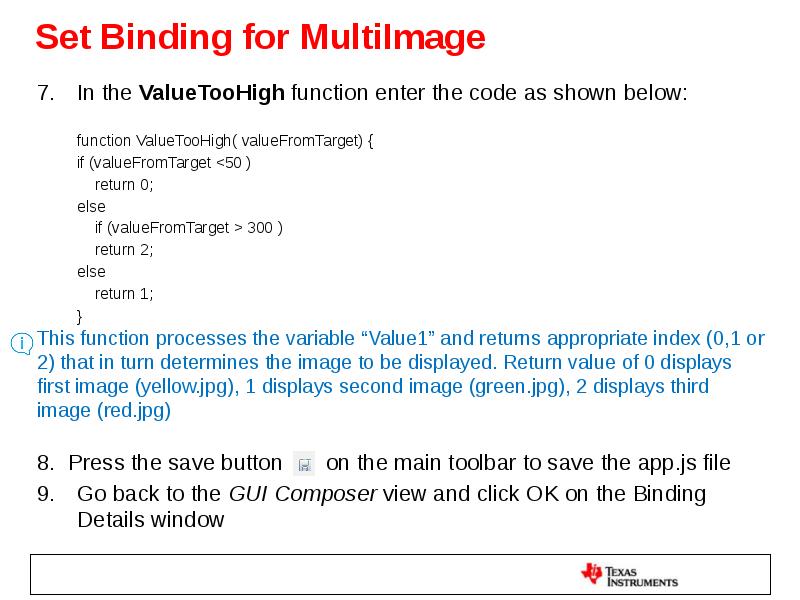
In the ValueTooHigh function enter the code as shown below:
function ValueTooHigh( valueFromTarget) {
if (valueFromTarget <50 )
return 0;
else
if (valueFromTarget > 300 )
return 2;
else
return 1;
}
This function processes the variable “Value1” and returns appropriate index (0,1 or 2) that in turn determines the image to be displayed. Return value of 0 displays first image (yellow.jpg), 1 displays second image (green.jpg), 2 displays third image (red.jpg)
8. Press the save button on the main toolbar to save the app.js file
Go back to the GUI Composer view and click OK on the Binding Details window
Слайд 60
Описание слайда:
Add TextBox Widget
This TextBox widget prints out if Value1 is “Too High”, “Too Low” or “OK” based on some checks. We will not be binding this widget to a variable but will instead use GUI Vars (see next slides) to determine the value to be written to the TextBox
In the GUI Composer Palette, click on TextBox, hold the left mouse button down and drag it onto the canvas and release the button
Resize and position the TextBox to the right of MultiImage widget previously created
Слайд 61
Описание слайда:
Add GUI Vars
GUI Vars allow you to bind to a target variable without a widget. It lets you perform an action when the value of the variable changes
Here GUI Vars is used to bind to variable “Value1” and write out text to the TextBox based on the value of the variable
In GUI Composer view, click on GUI Vars on the left
Click on New GUI Variable icon
Give it the name Value1
It can be any name but keeping it the same as variable
name for simplicity
Click OK
Expand the newly created item to edit its properties
Слайд 62
Описание слайда:
Add GUI Vars
For Server Bind Name, click on Value column and enter Value1
(this is the target variable you want to listen to)
For Data Type, click on Value column and select Long
(closest match to your variable type)
For onPropertyChanged, click on Value column
Click on Edit button
This opens the file app.js in the CCS Editor with a stub function
If you are prompted asking if you want to replace the contents of app.js
with these changes, click Yes
Слайд 63
Описание слайда:
Add GUI Vars
In the onValue1PropertyChanged function in app.js, add the following code:
This function gets the value of variable “Value1”, checks if it is less than or greater than certain values, and based on the result writes a particular text to the TextBox widget previously created (widget_46)
Adjust the widget ID in the code so it matches the widget ID for the last TextBox created
To find the widget ID, select the TextBox created in slide 60, click Binding on the right and check the widget ID
Press the save button on the main toolbar to save the app.js file
Слайд 64
Описание слайда:
Add GUI Vars
Go back to GUI Composer view and click on Save button to save app.html
Слайд 65
Описание слайда:
Load Target Application
If the Project Explorer is not visible double-click on
the GUI Composer tab to restore it to its normal size
Select blinky in the Project Explorer view
Click the bug button
This will build the project, launch the debugger,
flash the program onto the device and run to main()
Click on the Expressions view and add Vin, Pin, Value1and Value2
Ensure that Continuous Refresh button is still enabled
This tells CCS to periodically read and display the value of the variables as the program runs
Слайд 66
Описание слайда:
Preview the App
Click on GUI Composer tab in the editor
Click on the Preview button at the top right
If the program is already loaded on the device then preview mode will allow you to use the widgets
If there are errors or symbols are not loaded a red X will appear
Слайд 67
Описание слайда:
Test the App
Click the Run button to run the target application
Go back to GUI Composer view and observe the following:
LED on Launchpad is blinking
In Expressions view, value of delay is 200000
Line Graph and Scatter Plot are updated
In Expressions view, Vin and Pin show their initial values: 20 and 30
In the GUI, Value1 and Value2 are displayed, with Value2 also displayed in binary, and their values match those in the Expressions view
In the GUI, Green LED light is displayed based on Value1 being within the desired range (>50 and <300) and Text Box next to it says OK
Слайд 68
Описание слайда:
Test the App
Adjust the value of Vin by using the Number Spinner or typing a value in the box
Observe the following:
Vin is updated in Expressions view and GUI
Value1 is updated accordingly
Line Graph and Scatter Plot are updated accordingly
If Vin is set to a value (> 57) that makes Value1 greater than 300, then Red LED light is displayed and Text Box next to it says TOO HIGH
If Vin is set to a value (< 10) that makes Value1 less than 50, then Yellow LED light is displayed and Text Box next to it says TOO LOW
Adjust the value of Pin by using the Number Spinner or typing a value in the box
Observe the following:
Pin is updated in Expressions view and GUI
Value2 and Value2 (binary) are updated accordingly
Line Graph is updated accordingly
Слайд 69
Описание слайда:
Clean Up
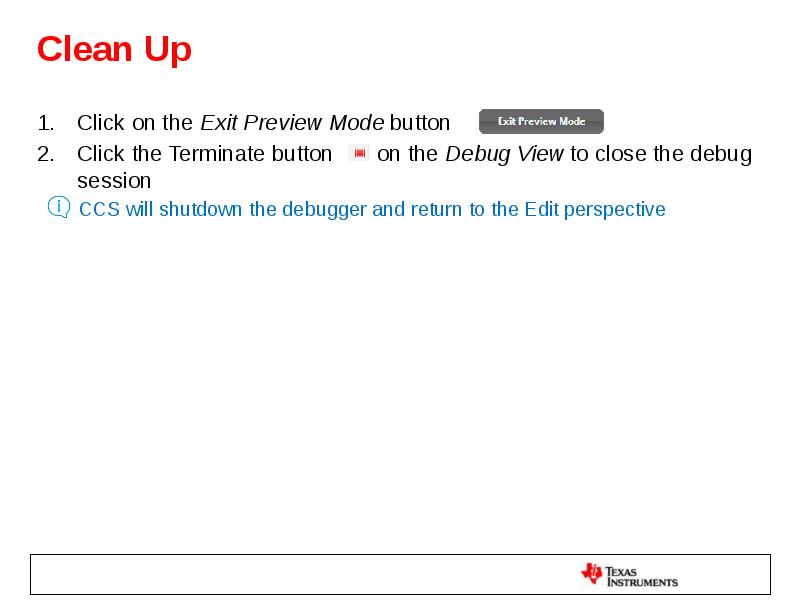
Click on the Exit Preview Mode button
Click the Terminate button on the Debug View to close the debug session
CCS will shutdown the debugger and return to the Edit perspective
Слайд 70
Описание слайда:
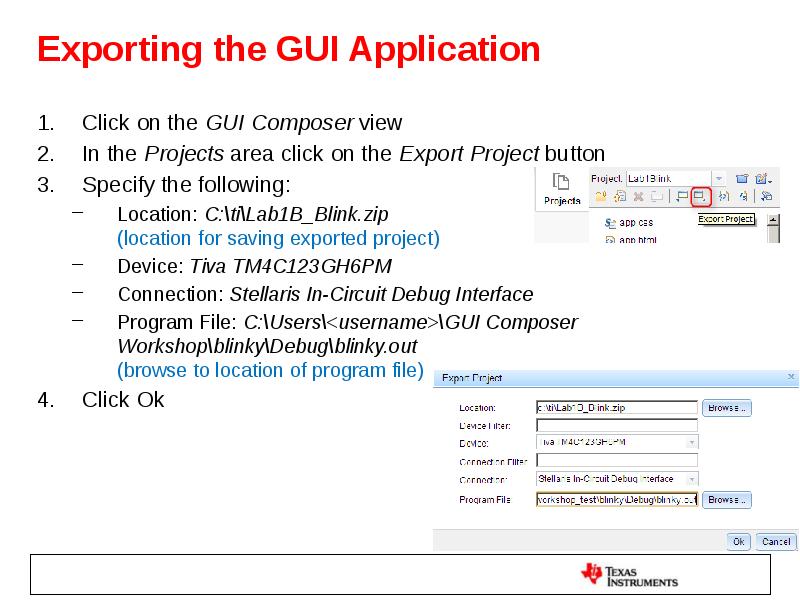
Exporting the GUI Application
Click on the GUI Composer view
In the Projects area click on the Export Project button
Specify the following:
Location: C:\ti\Lab1B_Blink.zip
(location for saving exported project)
Device: Tiva TM4C123GH6PM
Connection: Stellaris In-Circuit Debug Interface
Program File: C:\Users\<username>\GUI Composer Workshop\blinky\Debug\blinky.out
(browse to location of program file)
Click Ok
Слайд 71
Описание слайда:
Add App to GUI Composer Runtime
Open a file explorer window
Go to c:\ti
Right click on Lab1B_Blink.zip
Select Extract All
Extract the files to c:\ti\guicomposer\webapps
Слайд 72
Описание слайда:
Run the Standalone Application
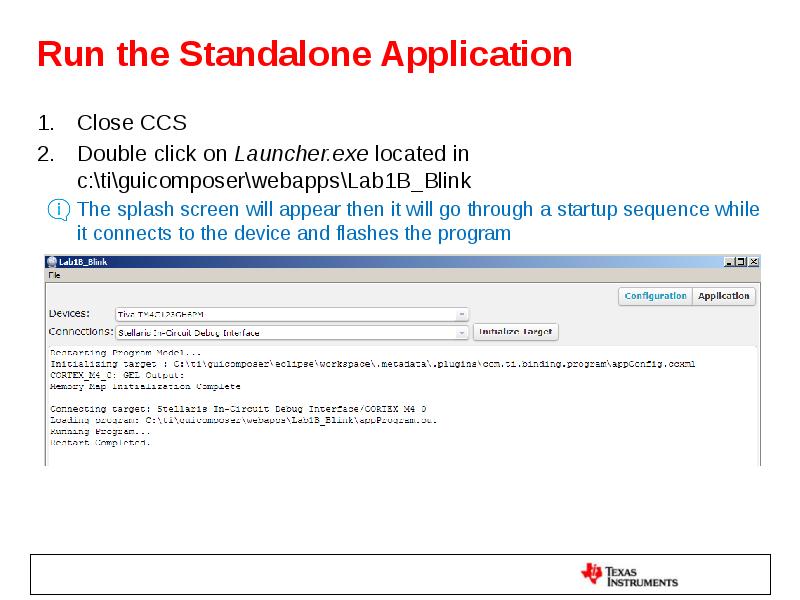
Close CCS
Double click on Launcher.exe located in c:\ti\guicomposer\webapps\Lab1B_Blink
The splash screen will appear then it will go through a startup sequence while it connects to the device and flashes the program
Слайд 73
Описание слайда:
Run the Standalone Application
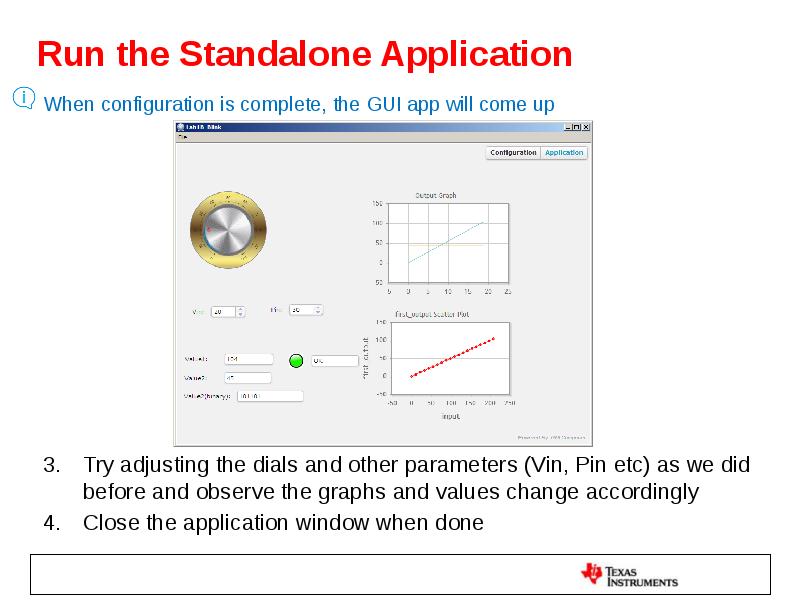
When configuration is complete, the GUI app will come up
Try adjusting the dials and other parameters (Vin, Pin etc) as we did before and observe the graphs and values change accordingly
Close the application window when done
Слайд 74
Описание слайда:
LAB 2: UART TRANSPORT
Слайд 75
Описание слайда:
LAB conventions
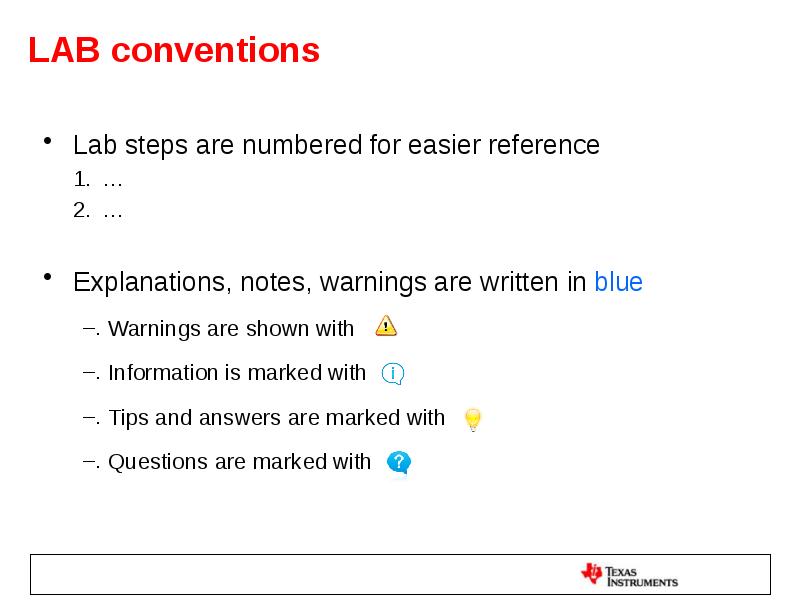
Lab steps are numbered for easier reference
…
…
Explanations, notes, warnings are written in blue
Warnings are shown with
Information is marked with
Tips and answers are marked with
Questions are marked with
Слайд 76
Описание слайда:
UART Transport: Exercise Summary
Key Objectives
Use a TI-RTOS application with UARTMon module enabled
Create a simple GUI that binds a widget to a target variable
Use UART communication to view and control the application through GUI composer
Tools and Concepts Covered
UART transport using a TI-RTOS application
GUI Builder tool
Variable binding
Target variable modification
Target variable display
NOTE: This lab uses a TI-RTOS program. For using UART communication with a non TI-RTOS program, please refer to this wiki page:
http://processors.wiki.ti.com/index.php/ProgramModelUart_GuiComposer
Слайд 77
Описание слайда:
Lab 2: UART Transport example
20 minutes
Слайд 78
Описание слайда:
Launch CCS
Double click on the Code Composer Studio desktop icon
Specify “GUI Composer Workshop” as the workspace
Слайд 79
Описание слайда:
Import and Build ‘GPIO Interrupt’ Project
Go to menu View->Resource Explorer (Examples)
Expand TI-RTOS for TivaC->Tiva C Series->Tiva TM4C123GH6PM-> EK-TM4C123GXL Evaluation Kit-> Driver Examples->>TI Driver Examples->GPIO Examples, and select GPIO Interrupt
Слайд 80
Описание слайда:
Import and Build ‘GPIO Interrupt’ Project
In the right-pane, click on Step1 to Import the example project into CCS
Click on Step2 to Build the imported project
Click on Step 3 for Debugger Configuration and select Stellaris In-Circuit Debug Interface as the Connection
Слайд 81
Описание слайда:
Review the RTOS configuration
In Project Explorer view, expand the project gpiointerrupt_TivaTM4C123GH6PM
Double-click on gpiointerrupt.cfg to open it
Click on System Overview
Notice that UART Monitor is enabled in the Property view as well as Outline view
This module enables the host to communicate with target device using UART. It consists of a running task that uses the TI-RTOS UART driver to respond to requests to read/write memory at specified addresses on the target.
Слайд 82
Описание слайда:
Add UART Communication to target config
Find the COM Port number for your device
using Device Manager
In Project Explorer view, expand targetConfigs folder and double-click on Tiva TM4C123GH6PM.ccxml to open it
Under Alternate Communication, select UART Communication and click the Add button to add a port for the target to listen to
Click on ComPort and adjust the COM Port number there to match the one your target is using. Leave the Baud Rate setting as 9600
Click on Save to save the ccxml file
Слайд 83
Описание слайда:
Open GUI Composer
Go to GUI Composer view if it is already open,
else open the view from menu
View -> GUI Composer
Double-click on the GUI Composer tab to maximize it
Слайд 84
Описание слайда:
Create a New GUI Composer Project
If GUI Composer is being opened for the first time, click on the New Project button
If GUI Composer has been previously opened ,
click on New Project button in the Projects view
Name the project GPIOInterrupt
Click Ok
Слайд 85
Описание слайда:
Add a Dial Widget
The Dial widget may be used to provide a user input to control a numeric variable, as well as to view the variable as it value changes
Go to the GUI Composer Palette and expand GUI Composer->Instrumentation
Click on Dial, hold the left mouse button down
and drag it onto the canvas in the middle of
the screen and release the button
Слайд 86
Описание слайда:
Change the Appearance of the Dial
Select the Dial on the canvas
There should be a blue square around it
Click on Widget on the right
This will display some properties of the selected Widget
Set the following
Minimum value = 0
Maximum value = 30
Number Format = standard
Слайд 87
Описание слайда:
Bind a Variable to the Dial
Make sure the Dial is selected
Click on Binding on the right
In Value: field, add count
This binds the variable “count” to the Dial widget
Click on the Save button at the top of the GUI Composer view
Слайд 88
Описание слайда:
Load Target Application
If the Project Explorer view is not visible double-click
on the GUI Composer tab to restore it to its normal size
Select gpiointerrupt_TivaTM4C123GH6PM
in the Project Explorer view
Click the bug button to debug the project
This will build the project (if required), launch the debugger, flash the program onto the device and run to main()
If this is the first time launching the debugger for this target configuration, this pop-up will appear
De-select UARTConnection_0/ComPort and click OK
This will load the program through Stellaris ICDI JTAG
Слайд 89
Описание слайда:
Load Symbols for UART Connection
Once the program is running, load symbols for the UART connection
In the Debug view, click the Run button to run the code
In the Debug view, click on UARTConnection_0/ComPort (Running)
Go to menu Run->Load->Load Symbols, select the gpiointerrupt_TivaTM4C123GH6PM.out file and click OK
Go to the Expressions view and add count. Delete other variables
that may be in the Expressions view
Click the Continuous Refresh button
This will allow CCS to periodically read and display the value of count as the program runs
Слайд 90
Описание слайда:
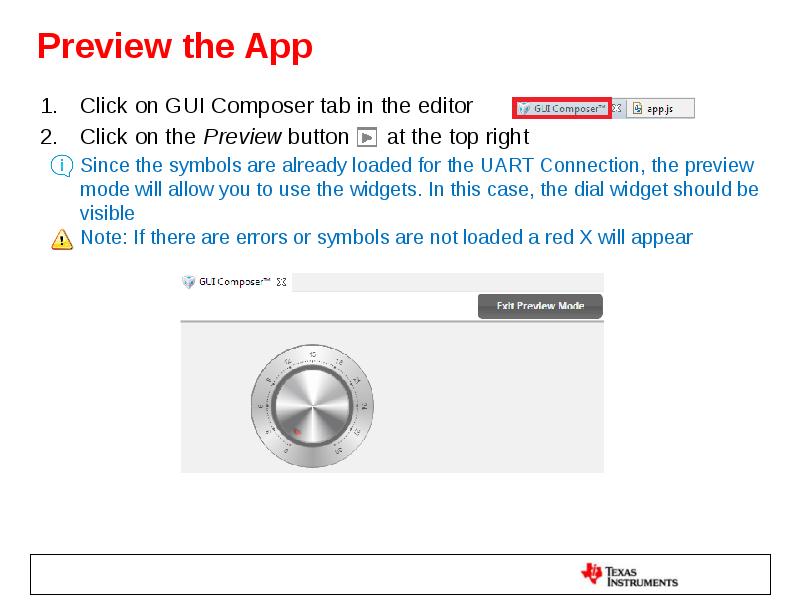
Preview the App
Click on GUI Composer tab in the editor
Click on the Preview button at the top right
Since the symbols are already loaded for the UART Connection, the preview mode will allow you to use the widgets. In this case, the dial widget should be visible
Note: If there are errors or symbols are not loaded a red X will appear
Слайд 91
Описание слайда:
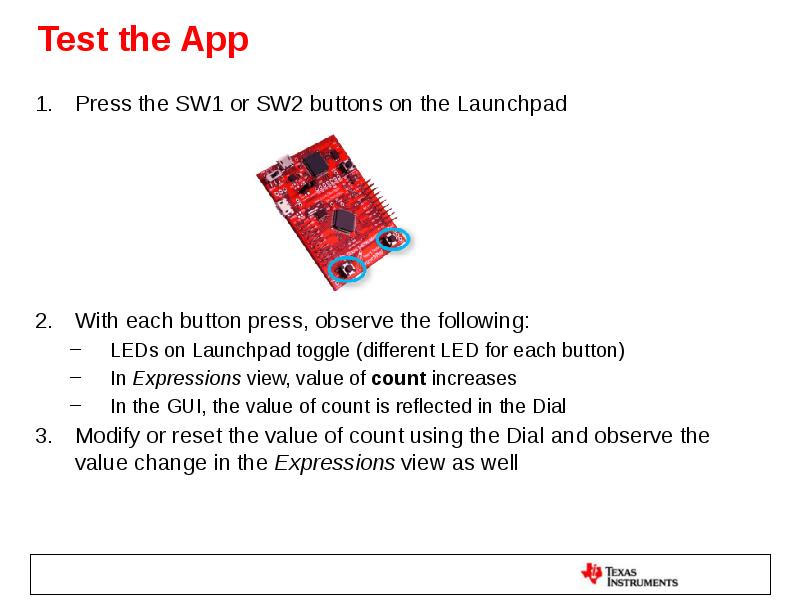
Test the App
Press the SW1 or SW2 buttons on the Launchpad
With each button press, observe the following:
LEDs on Launchpad toggle (different LED for each button)
In Expressions view, value of count increases
In the GUI, the value of count is reflected in the Dial
Modify or reset the value of count using the Dial and observe the value change in the Expressions view as well
Слайд 92
Описание слайда:
Clean Up
Click on the Exit Preview Mode button
Click the Terminate button on the Debug View to close the debug session
CCS will shutdown the debugger and return to the CCS Edit perspective
Слайд 93
Описание слайда:
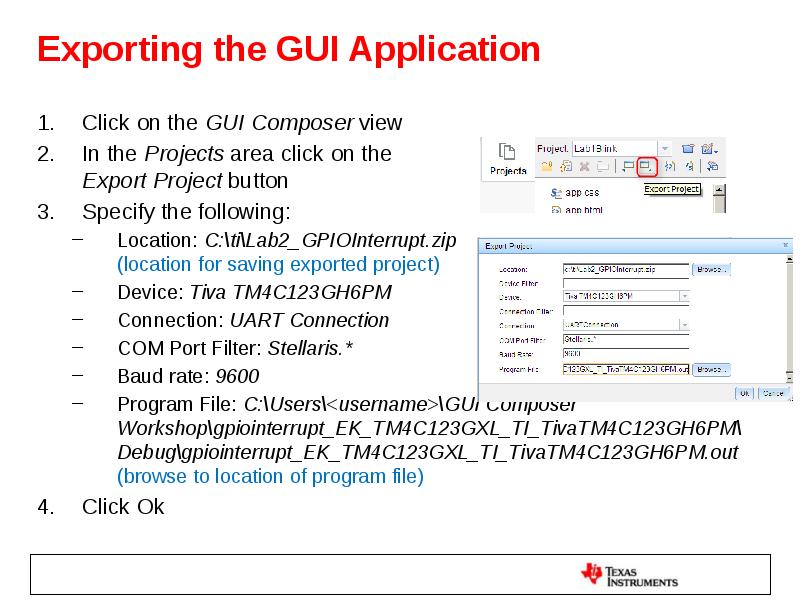
Exporting the GUI Application
Click on the GUI Composer view
In the Projects area click on the
Export Project button
Specify the following:
Location: C:\ti\Lab2_GPIOInterrupt.zip
(location for saving exported project)
Device: Tiva TM4C123GH6PM
Connection: UART Connection
COM Port Filter: Stellaris.*
Baud rate: 9600
Program File: C:\Users\<username>\GUI Composer Workshop\gpiointerrupt_EK_TM4C123GXL_TI_TivaTM4C123GH6PM\
Debug\gpiointerrupt_EK_TM4C123GXL_TI_TivaTM4C123GH6PM.out
(browse to location of program file)
Click Ok
Слайд 94
Описание слайда:
Add App to GUI Composer Runtime
Open a file explorer window
Go to c:\ti
Right click on Lab2_GPIOInterrupt.zip
Select Extract All
Extract the files to c:\ti\guicomposer\webapps
Слайд 95
Описание слайда:
Run the Standalone Application
Close CCS
Power cycle the Launchpad
Double click on Launcher.exe located in c:\ti\guicomposer\webapps\Lab2_GPIOInterrupt
The splash screen will appear then it will establish UART connection with the device, and the GUI app will come up
Слайд 96
Описание слайда:
Test the Standalone Application
Press the SW1 or SW2 buttons on the Launchpad
With each button press, observe the value of count reflected in the Dial in the GUI app
The data is being sent from target to GUI app using UART
Close the application window when done
Слайд 97
Описание слайда:
Exercise Summary
After completing the labs you should be familiar with:
Using GUI Composer to create widgets for controlling and visualizing target variables
Running GUI Composer app from within CCS or standalone
Using JTAG and UART transport for viewing and controlling the application through GUI composer
Additional References:
GUI Composer wiki: http://processors.wiki.ti.com/index.php/Category:GUI_Composer
Скачать презентацию на тему GUI composer. Embedded development tools можно ниже: